The admin panel is at yourdomain.com/ADMIN/. Log in with your administrator username and password; each login is recorded in the login logs.
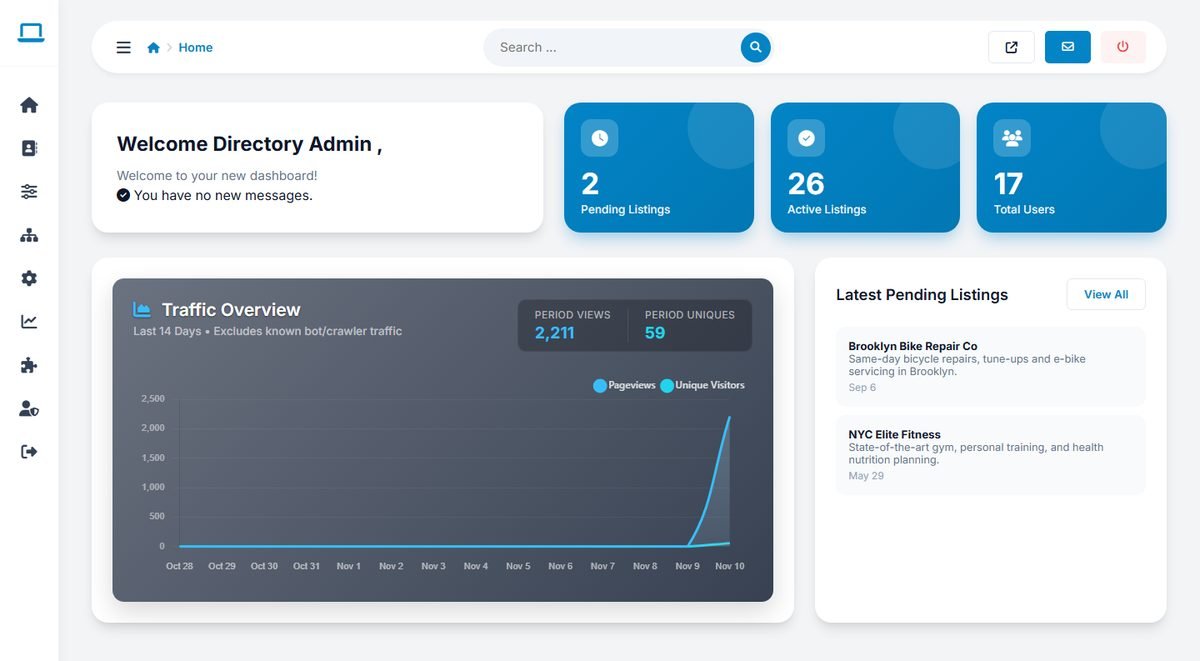
Layout and navigation
- Menu on the left: nine sections, shown as icons. Hover or click an icon to see its pages. The ☰ button at the top expands or collapses the menu.
- Breadcrumb: shows the current page.
- Search box: type part of a page name, for example "pack" or "backup", and jump straight to the matching admin page.
- Buttons at the top right: open the website in a new tab, open the messages, and log out.
| Section | Pages |
|---|---|
| Home | Dashboard, Quick Links, Messages, Login Logs, Change Password |
| Directory | Approve Listings, Add Listing, Current Listings, Claimed Listings, Payments, Users, Reviews, Import |
| Directory Settings | Configuration Options, Packages, Categories, Locations, Custom Fields, Banners, Category Custom Titles, Location Custom Titles |
| Website | Pages, News, FAQ, Logo & Favicon, Templates, Interface Texts, Advertisements |
| Settings | Configuration Options, Tracking Codes, Social Media, Backups, Language Versions |
| Statistics | Traffic Reports, Referrals & Sources, Audience & Tech, Live Activity Log |
| Extensions | Extension Files, Custom Tags |
| Admin Users | Admin Users, Groups, Permissions |
Administrators who are not in the Super Administrator group only see the pages their group is allowed to open. See Admin Users, Groups and Permissions.
The dashboard
- A welcome message with the date of your last login and whether you have new messages.
- Counters for Pending Listings, Active Listings and Total Users.
- Traffic Overview: page views and unique visitors of the last 14 days, without known bots and crawlers.
- Latest Pending Listings, with a View All link to the approval page.
Start each working day on the dashboard: the pending listings counter tells you whether businesses are waiting for you.
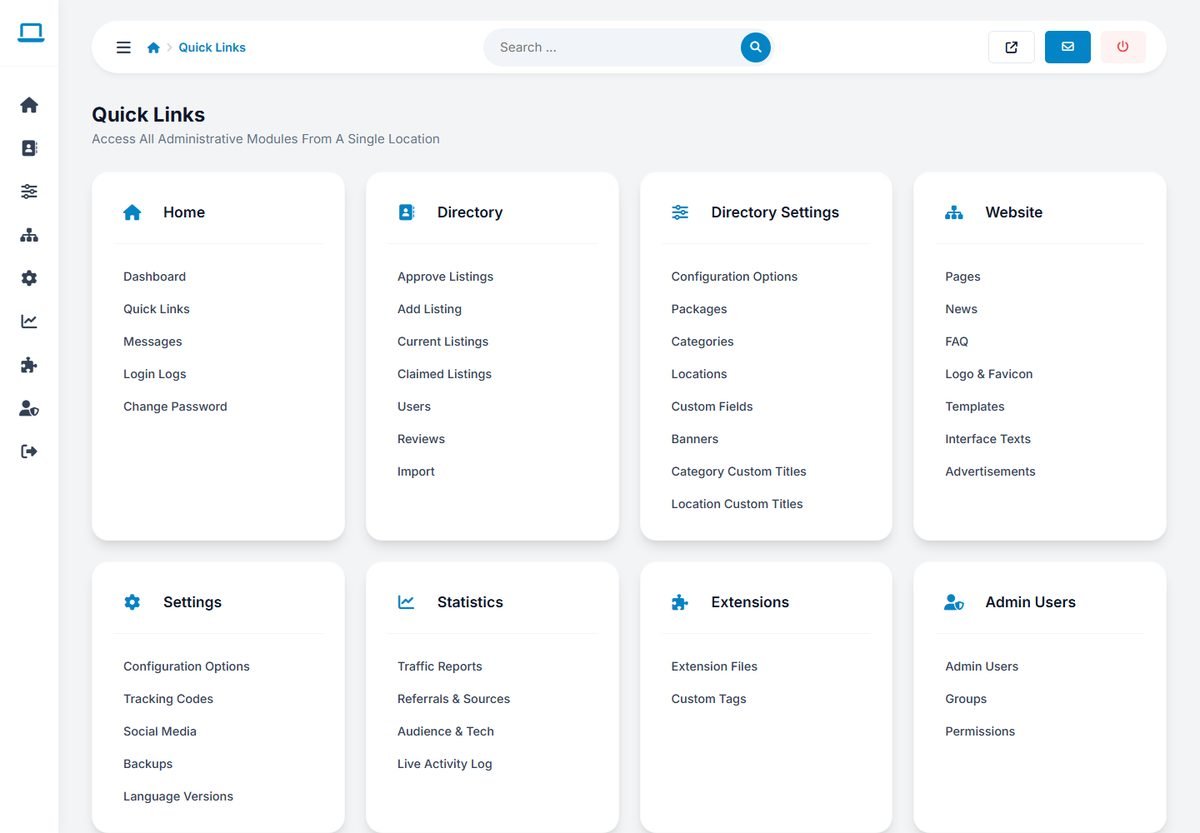
Quick Links
Admin Panel › Home › Quick Links
All admin pages on one screen, grouped by section. Useful when you are new to the admin panel.
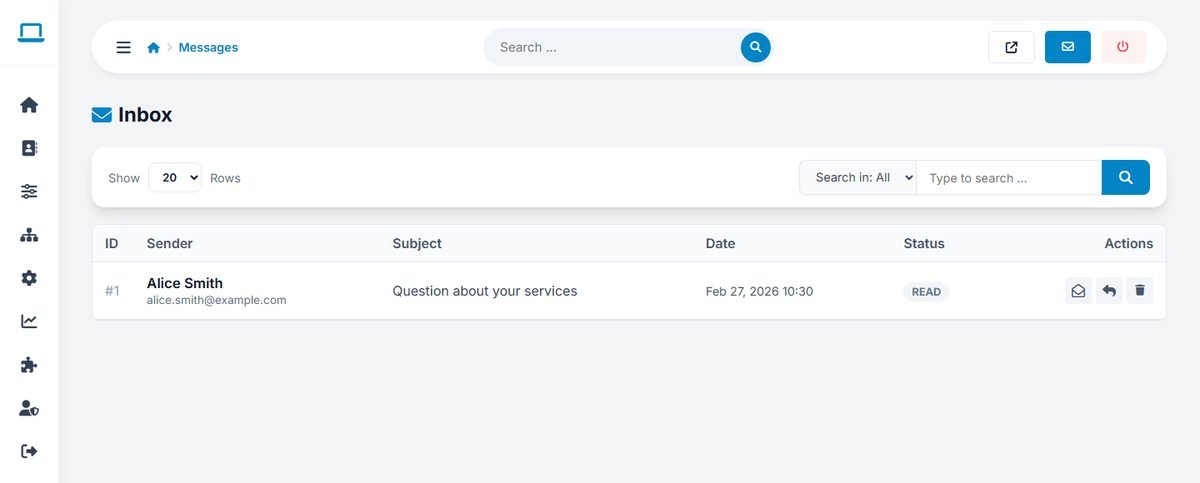
Messages
Admin Panel › Home › Messages
The inbox of the website's contact form. Each message shows the sender's name and email address, the subject, the date and whether it has been read. Open a message to read it, reply to the sender by email directly from the admin panel, or delete it. Search the messages by email, phone, sender or subject.
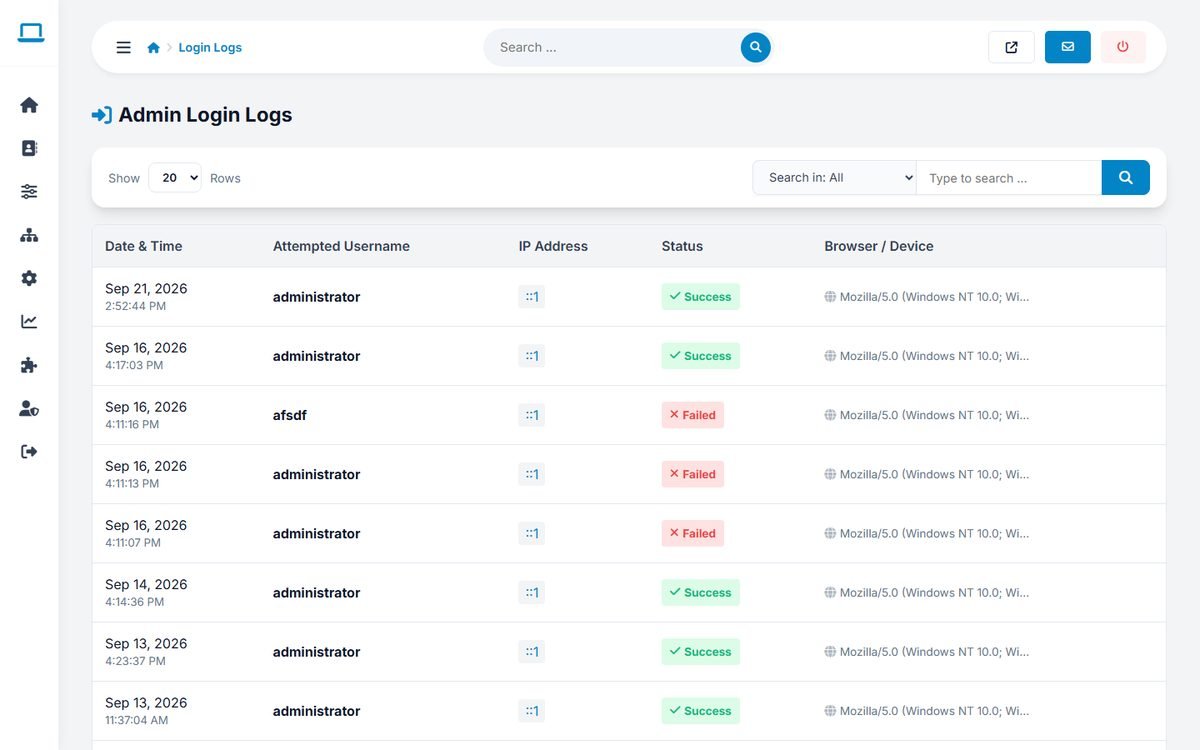
Login logs
Admin Panel › Home › Login Logs
Every attempt to log in to the admin panel, successful or not, with the date and time, the username that was tried, the IP address and the browser. Several failed attempts with unknown usernames usually mean that a robot is trying to guess passwords: use a strong password and unique admin usernames.
Change password
Admin Panel › Home › Change Password
Enter your current password and the new one twice, then click Submit. The password is stored as a secure hash.
Working with lists
Most admin pages show a list with the same controls: Show … Rows sets how many rows appear per page, the Search in menu chooses which column to search, and the buttons on the right of each row edit or delete it. Deleting always asks for a confirmation.