PHP Business Directory is software for running a business directory website: a yellow pages site, a city guide, a niche directory of wedding venues or lawyers, or a regional chamber of commerce listing. You install it on your own web hosting, you own the data and the full source code, and you decide how the directory makes money.
This manual describes version 6.1. It is written for directory owners and their staff, not only for developers: every page of the software is explained in plain language, with screenshots.
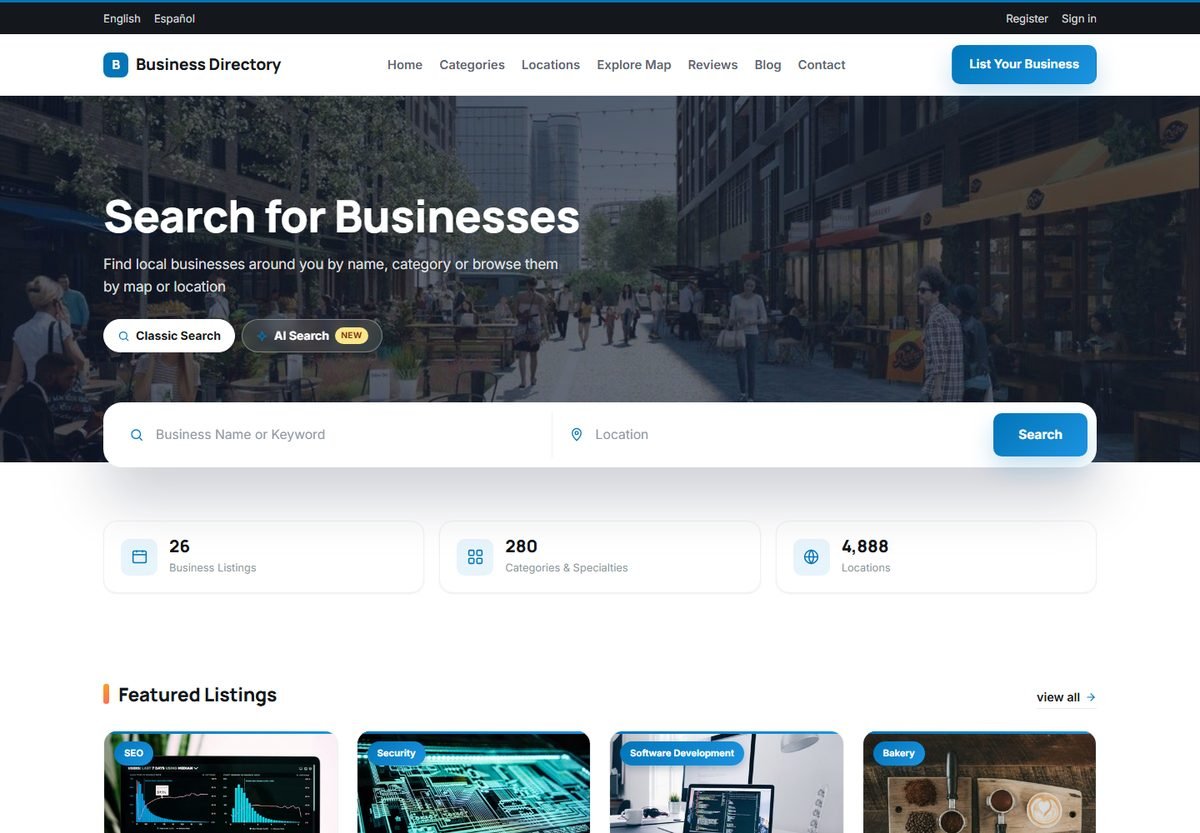
The three parts of the software
PHP Business Directory has three separate areas, each with its own users.
| Area | Who uses it | Address | What happens there |
|---|---|---|---|
| The website | Visitors | yourdomain.com/ | Searching and browsing businesses, reading and writing reviews, booking appointments, adding and claiming listings. |
| The user panel | Business owners | yourdomain.com/USERS/ | Managing their own listings, photos, messages, appointments, employees and banners. |
| The admin panel | You and your team | yourdomain.com/ADMIN/ | Approving listings, managing users and reviews, configuring the directory, payments, AI, design, content and SEO. |
The manual follows the same structure. Part 2 covers the website, Part 3 covers the user panel and Part 4 covers the admin panel.
Main concepts
A few terms appear throughout the software and this manual:
- Listing: one business in the directory, with its description, contact details, address, map position, photos, opening hours, reviews and, optionally, appointment booking. Listings are also called ads in some places of the admin panel.
- Package: a pricing plan that a business owner chooses when adding a listing, for example Free, Standard or Featured. A package sets the price, how long the listing stays online, how many photos and categories it can have and whether it is featured. See Listing Packages and Pricing Plans.
- Category: the type of business, for example Restaurants › Italian. Each listing can be in up to three categories, depending on its package. See Managing Categories and Category Images.
- Location: where the business is, organised as a tree of countries, states or regions and cities. See Managing Locations and Location Images.
- Featured listing: a listing that is highlighted on the home page and at the top of search results, usually because its owner paid for a featured package.
- Approval: new listings and listing claims wait for an administrator to approve them, unless you switch on automatic approval for listings. Reviews are published immediately and can be edited or deleted by administrators.
- User: a registered business owner with access to the user panel. Visitors do not need an account to search, write reviews or even submit a single listing.
- Administrator: a member of your team with a login to the admin panel. Each administrator belongs to a group that decides which admin pages they can open. See Admin Users, Groups and Permissions.
What is new in version 6.1
Version 6.1 adds artificial intelligence features and four new templates to the modern 6.0 code base:
- AI writing assistant in every listing form, which writes or improves business descriptions.
- AI search on the home page, where visitors describe what they need in their own words.
- AI review summaries on listing pages, and AI tools for news, pages and SEO texts in the admin panel.
- Five front-end templates with different layouts: Business, City Guide, Explorer, Yellow Pages and Luxe, with a safe preview before you switch.
- Better SEO: real page titles and meta descriptions, schema.org data for local businesses, Open Graph tags and a cleaner sitemap.
- Security: all user passwords are now stored as secure hashes.
How to use this manual
If you are setting up a new directory, start with Quick-Start Checklist: Setting Up Your Directory. After that, use the manual as a reference: every admin panel page has a section that explains its fields and buttons.
Some conventions are used throughout:
- Text in bold is a button, field or menu item, written exactly as it appears on screen.
- A path such as Admin Panel › Directory Settings › Packages shows where to find a page: open the Directory Settings menu and click Packages.
- The screenshots show the default Business template and demo data. Your directory will look different once you choose a template and add your own content.
The manual is also available as a single PDF file that you can print or read offline. Use the Download PDF link at the top of any chapter.