Admin Panel › Directory Settings › Configuration Options › Payments
Paid packages, listing renewals and paid banner areas use the payment methods you enable here. Card and PayPal payments are confirmed with Stripe or PayPal on the server before they are recorded, so a payment only counts when the money has really been taken. Every payment appears in Directory › Payments.
Currency
Website Currency is the three-letter code of the currency used for all prices, for example USD, EUR or GBP. Stripe and PayPal charge in this currency, so use one that your accounts support.
Stripe (credit and debit cards)
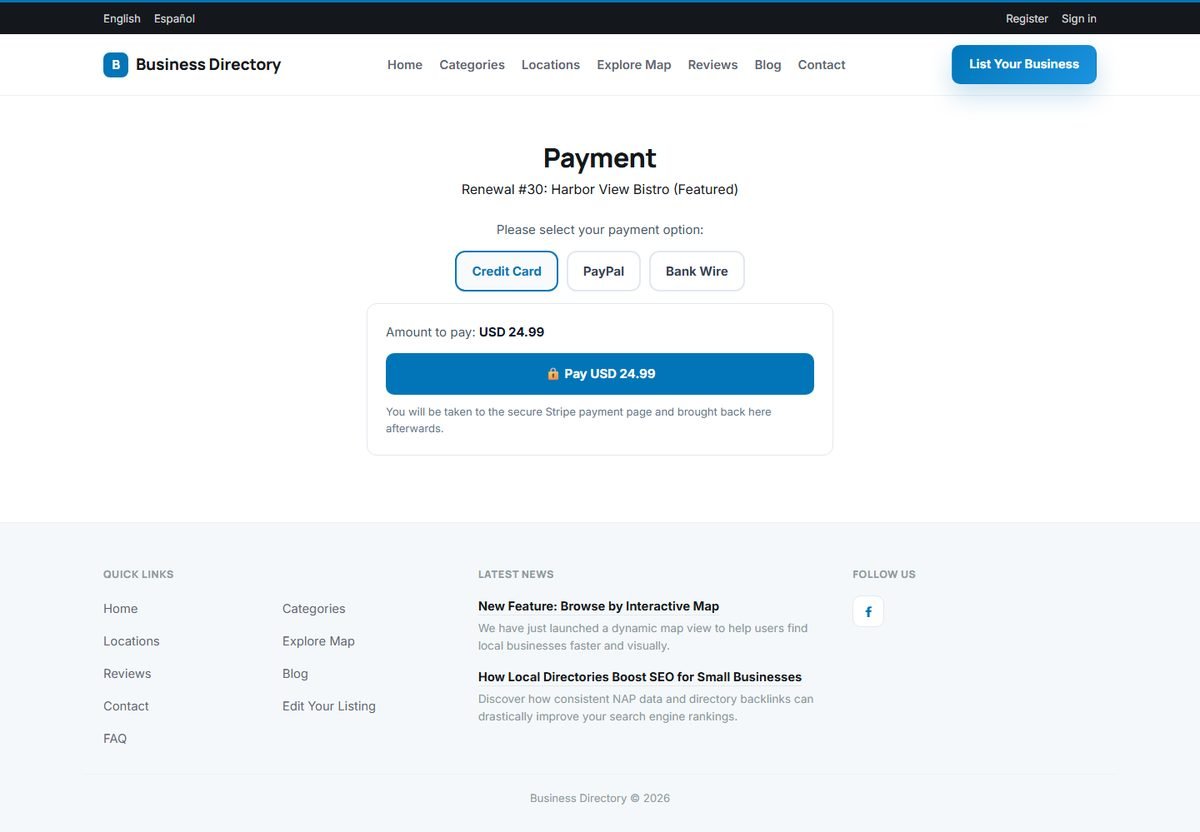
Stripe Checkout takes card payments, Apple Pay and Google Pay on Stripe's own secure page. The customer clicks Pay, pays on Stripe, and is brought back to your website, which checks the payment with Stripe and records it.
- In your Stripe dashboard, open Developers › API keys.
- Copy the Publishable key and the Secret key into Stripe Publishable Key and Stripe Secret Key. The secret key is required: it is used to create each payment and to confirm it.
- Choose Test Mode with Stripe's test keys while you try it out (test card 4242 4242 4242 4242, any future date and CVC), and Live Mode with the live keys when you are ready.
- Switch on Enable Stripe and save.
The Stripe webhook (recommended)
If a customer pays but closes the browser before returning to your website, the webhook still records the payment:
- In Stripe, open Developers › Webhooks and click Add endpoint.
- Enter the endpoint URL shown under Stripe Webhook Secret, for example
https://www.yourdomain.com/include/stripe_webhook.php. - Select the event
checkout.session.completedand save. - Copy the endpoint's Signing secret (it starts with
whsec_) into Stripe Webhook Secret.
Each webhook call is checked with the signing secret and confirmed again with Stripe, so it cannot be faked. A payment is never recorded twice.
PayPal
- Log in to the PayPal Developer dashboard with your PayPal business account and create an app under Apps & Credentials.
- Copy its Client ID and Secret into Paypal Client Id and Paypal Secret Key.
- Choose Sandbox Mode to test with PayPal's test accounts and Live Mode for real payments. Sandbox and live use different credentials.
- Switch on Enable Paypal and save.
Customers pay with the PayPal button, or by card through PayPal, without leaving your website. The website then asks PayPal to confirm the order, the amount and the currency before recording the payment. Without the secret key, the order cannot be checked and the payment is recorded as Check the payment for you to verify in your PayPal account. The Paypal Webhook Id field is not needed.
Bank transfer
Switch on Enable Bank Transfer and enter the Bank Account Name, Bank Name, Bank Account Number (or IBAN), Bank Routing Number (or SWIFT/BIC) and Bank Instructions. The customer sees these details with the amount and a reference such as "Listing #29". When the money arrives, record it on the Payments page.
The Payments page
Admin Panel › Directory › Payments
All payments for new listings, renewals and banners, newest first, with the date, the item, the method, the amount, the status and the Stripe, PayPal or bank reference. The total paid in the last 30 days is shown at the top.
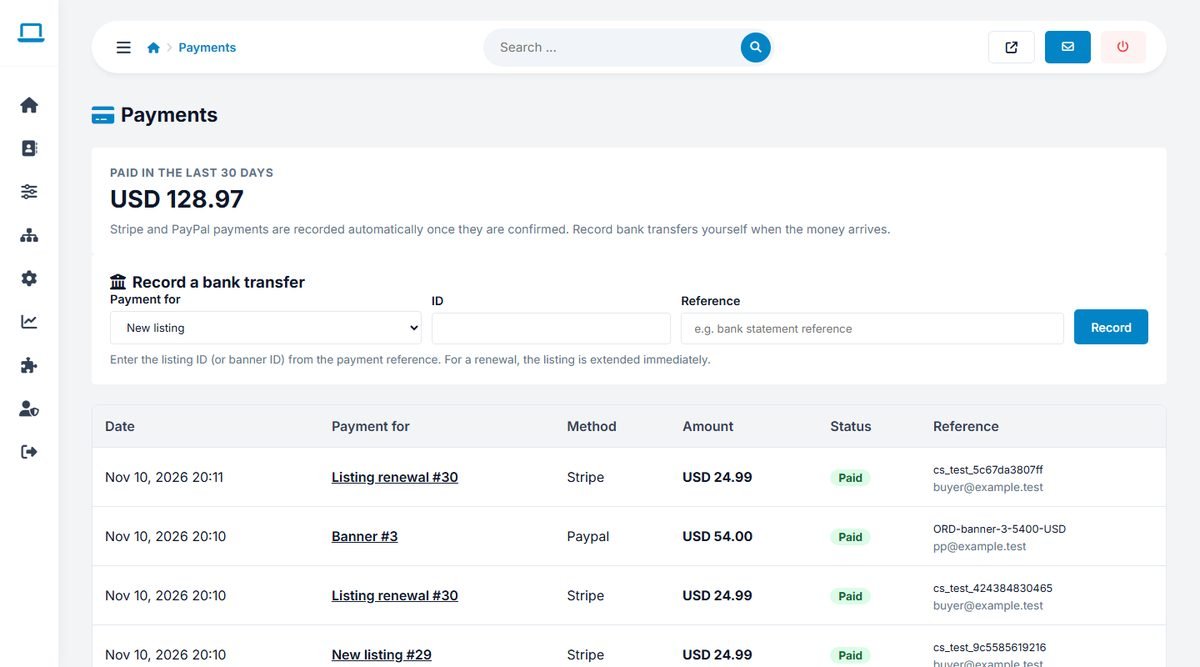
- Record a bank transfer: choose New listing, Listing renewal or Banner, enter the ID from the payment reference and, optionally, the bank's reference, and click Record. A renewal is applied to the listing immediately.
- Mark as paid: confirms a PayPal payment that could not be checked automatically, after you have seen it in your PayPal account.
The System Email Address also receives an email for every payment.
Approving paid listings and banners
Paid listings still wait in Directory › Approve Listings, so you can check their content. A label under the package shows the payment status: Paid with the method and amount, Check the payment, or Awaiting payment. Banners show the same label in Directory Settings › Banners.
Edit Success Message Paid in the Emails And Messages tab to tell customers when they can expect their listing to go live.
Keep Auto Approve Listings off when you sell paid packages; otherwise listings go live before they are paid.
Renewals
When a listing with a paid package expires, its owner can renew it from the user panel and pay online. Card and PayPal payments extend the listing at once by the package duration; see renewing in the user panel.