PHP Business Directory has two advertising tools:
- Banner areas are spaces you sell to businesses. They choose an area, upload a banner and pay from their user panel.
- Ad zones hold advertising code from networks such as Google AdSense, or a simple image ad.
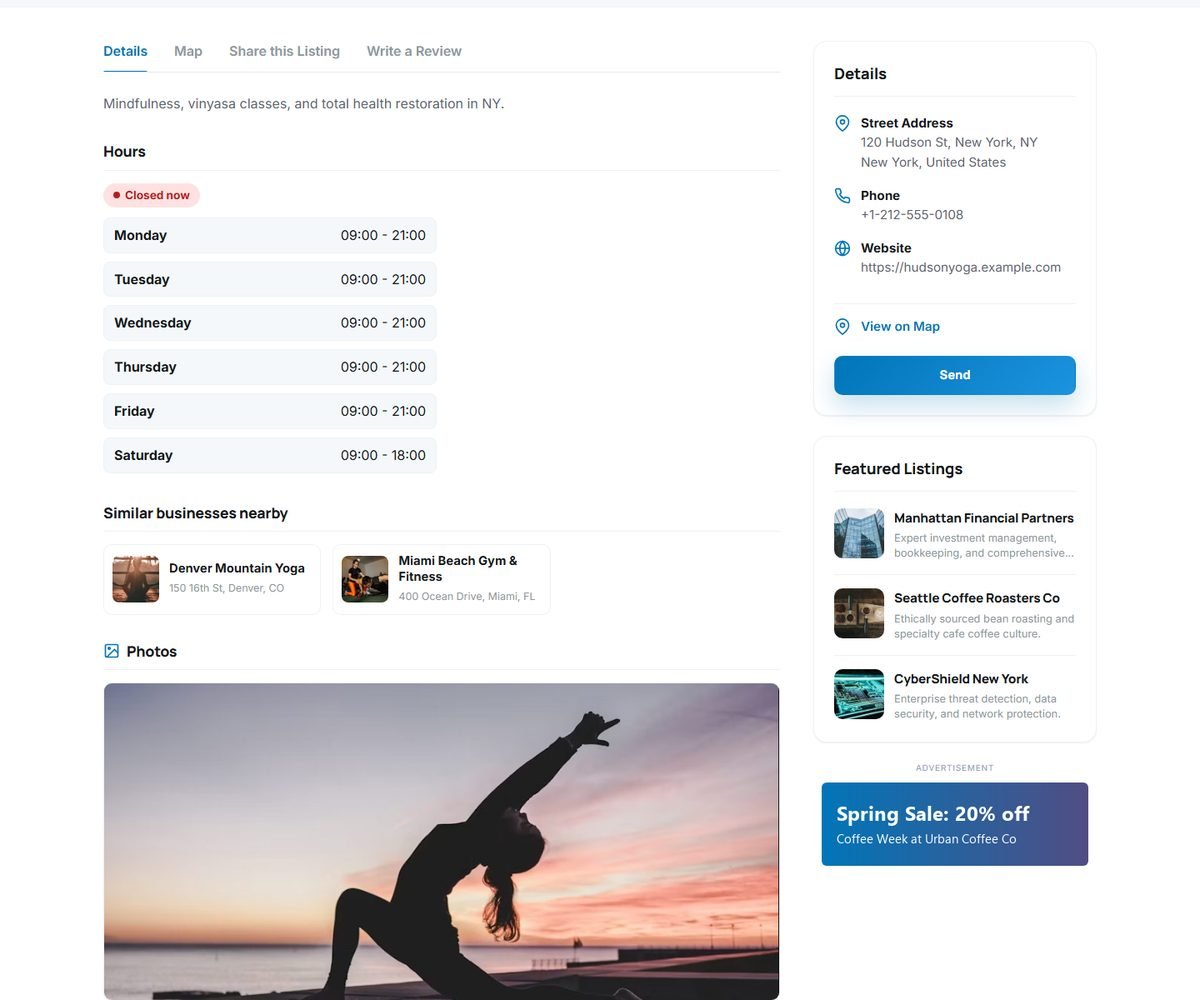
Banner areas
Admin Panel › Directory Settings › Banners › Manage Banner Areas
A banner area is a place on the website where banners rotate. Click Add Banner Area and enter:
| Field | Meaning |
|---|---|
| Area Name | Shown to users when they choose where to advertise, for example "Home Page Sidebar". |
| Width and height | The banner size in pixels, for example 300 × 250. Users must upload banners of this size. |
| Price per period | What one banner costs for the period below. 0 makes the area free. |
| Duration days | How long a purchased banner is shown. |
| Max banners in rotation | How many banners the area can sell at the same time. When it is full, users see it as SOLD OUT. |
| Banners shown at once | How many of the area's banners appear on a page. When there are more, a random selection is shown on each page view. |
| Where the area is shown | Home page, Sidebar of listing and search pages, Above the footer of every page, or Only where its template tag is placed. |
| Description | A sentence for advertisers, shown in the user panel, for example "Seen on every listing page, next to the contact details." |
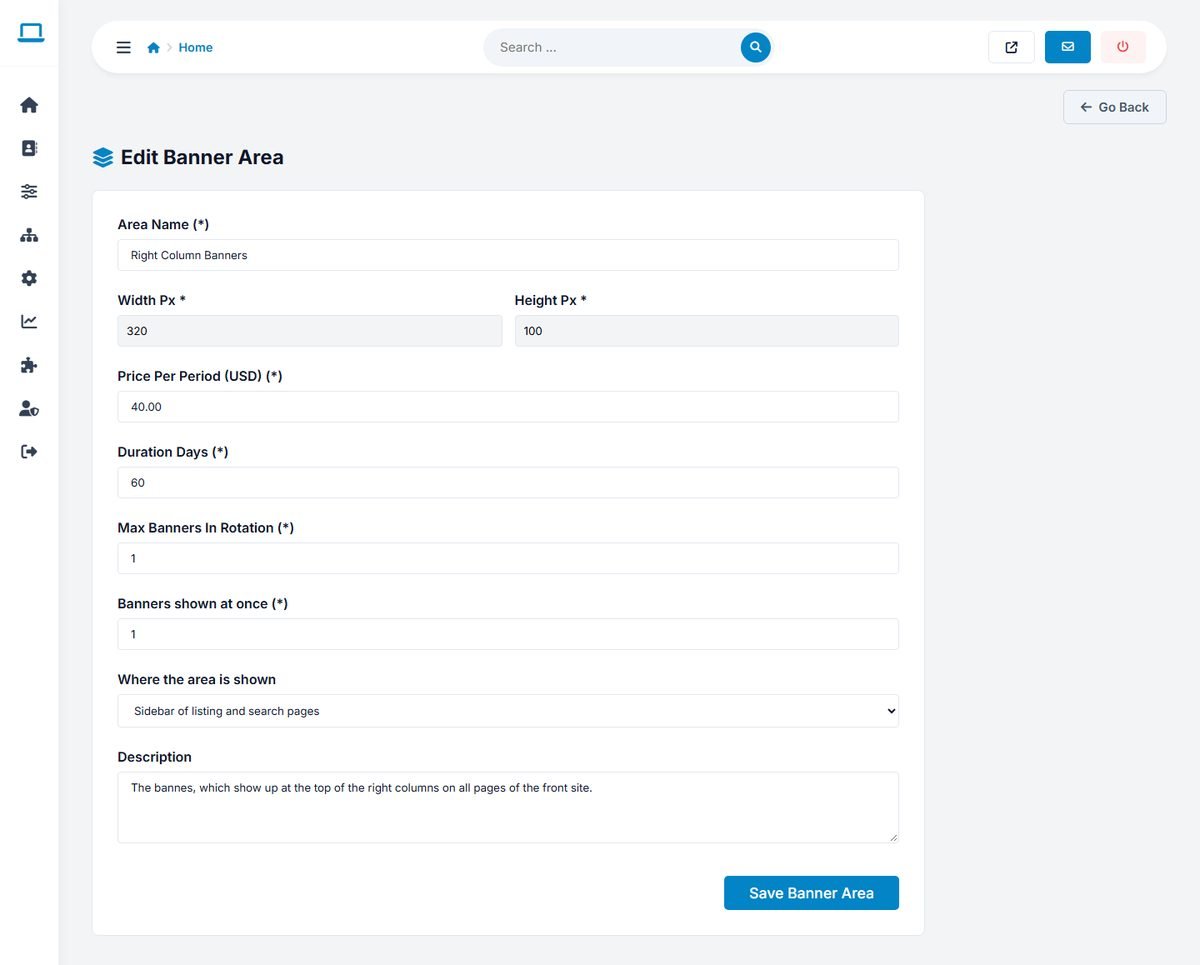
The list shows each area's position, size, price and how many places are taken. Each area also has a template tag, for example [BANNER_AREA_1]. With the position Only where its template tag is placed, the area appears wherever you put that tag: in a template file or in the content of a page.
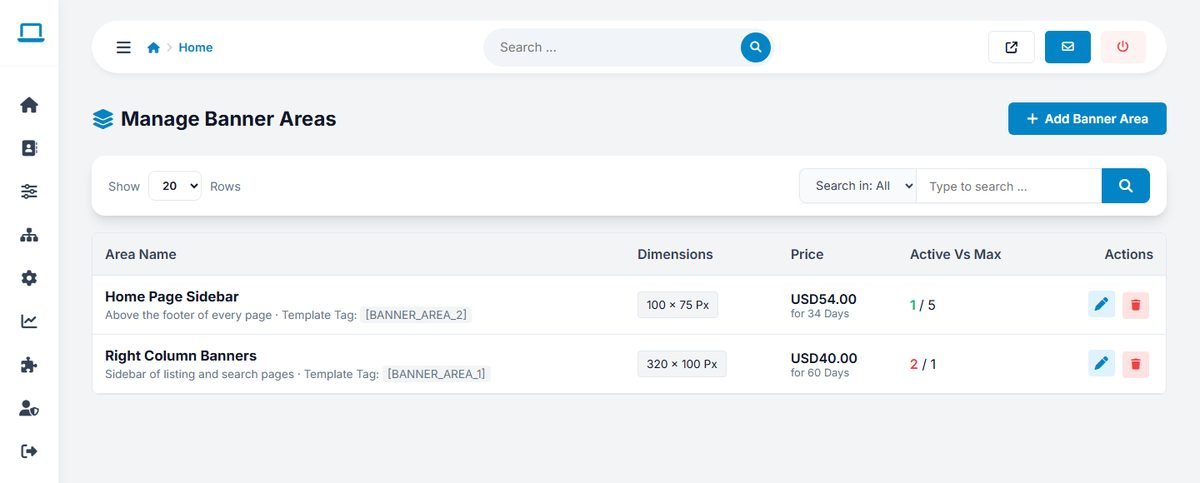
All five templates show home page areas below the home page search, sidebar areas at the bottom of the listing page sidebar (and of the search results sidebar in the Business and Yellow Pages templates), and footer areas just above the footer.
Managing banners
Admin Panel › Directory Settings › Banners
All banners, whether bought by users or added by you, are listed with their image, name, link, area, status and expiry date. For banners in paid areas, a label shows whether the banner has been paid.
- Check new banners and tick Active when the image and link are acceptable and the payment has arrived. Only active banners that have not expired appear on the website.
- Renew extends a banner for another period.
- Add Banner creates a banner yourself: enter the Banner Name, the Target URL it links to, choose the Banner Area, upload the image and tick Active. Use this for your own promotions or for advertisers who paid offline.
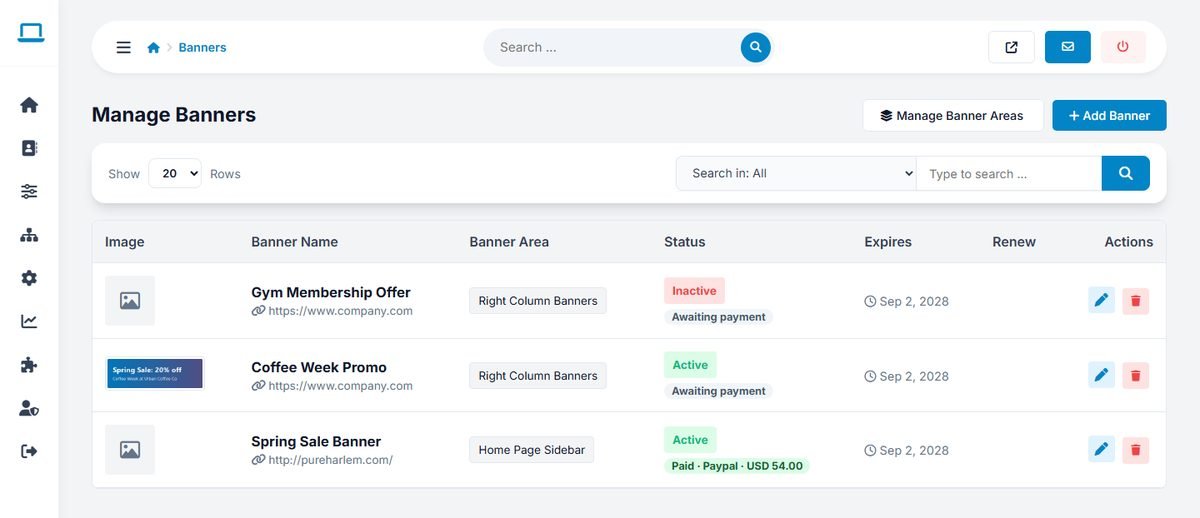
Banners that link to another website open in a new tab and carry rel="sponsored", as search engines require for paid links. How users buy banners is described in Buying Banner Advertising.
Ad zones
Admin Panel › Website › Advertisements
The website has six ad zones:
| Zone | Where it appears |
|---|---|
| Header (Top of page) | Just below the header, on every page. |
| Sidebar (Top) and Sidebar (Bottom) | At the top and the bottom of the listing page sidebar, and of the search results sidebar in the Business and Yellow Pages templates. |
| Above / Below Article Content | Above and below each news article. |
| Footer (Bottom of page) | Just above the footer, on every page. |
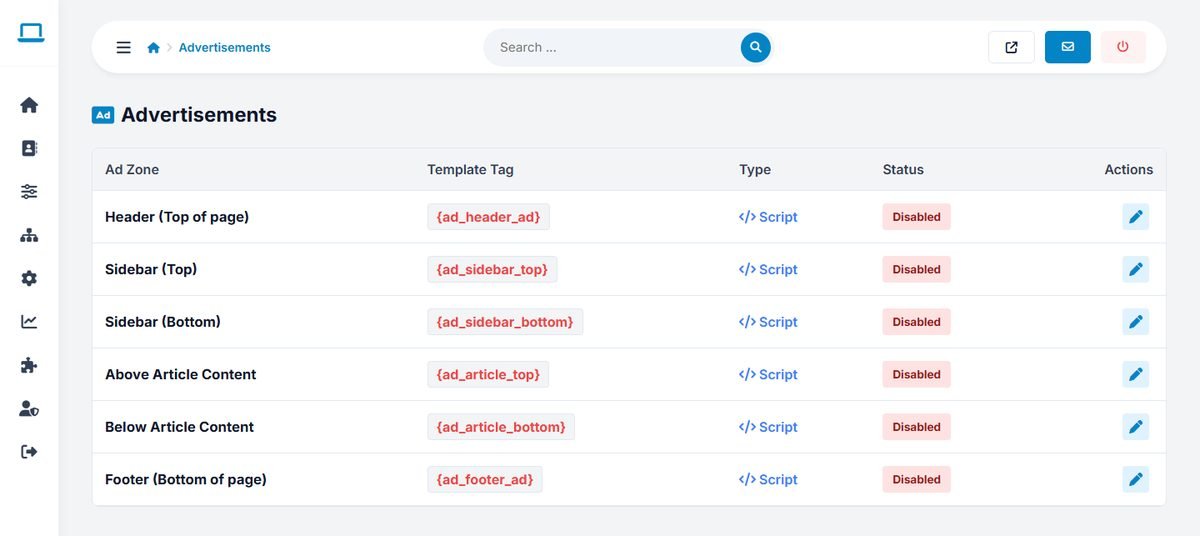
Click the edit button of a zone, choose the type and fill it in:
- Script: paste the HTML or JavaScript code from your ad network, for example a Google AdSense ad unit.
- Banner: upload an image and enter the target URL, for a simple image ad.
Tick Enable and save. A disabled zone shows nothing. Each zone also has a template tag, such as {ad_header_ad}, to place it somewhere else in a custom template.
Do not overload the website with ads. Visitors come to find businesses; one or two well-placed ads earn more over time than ads in every zone.