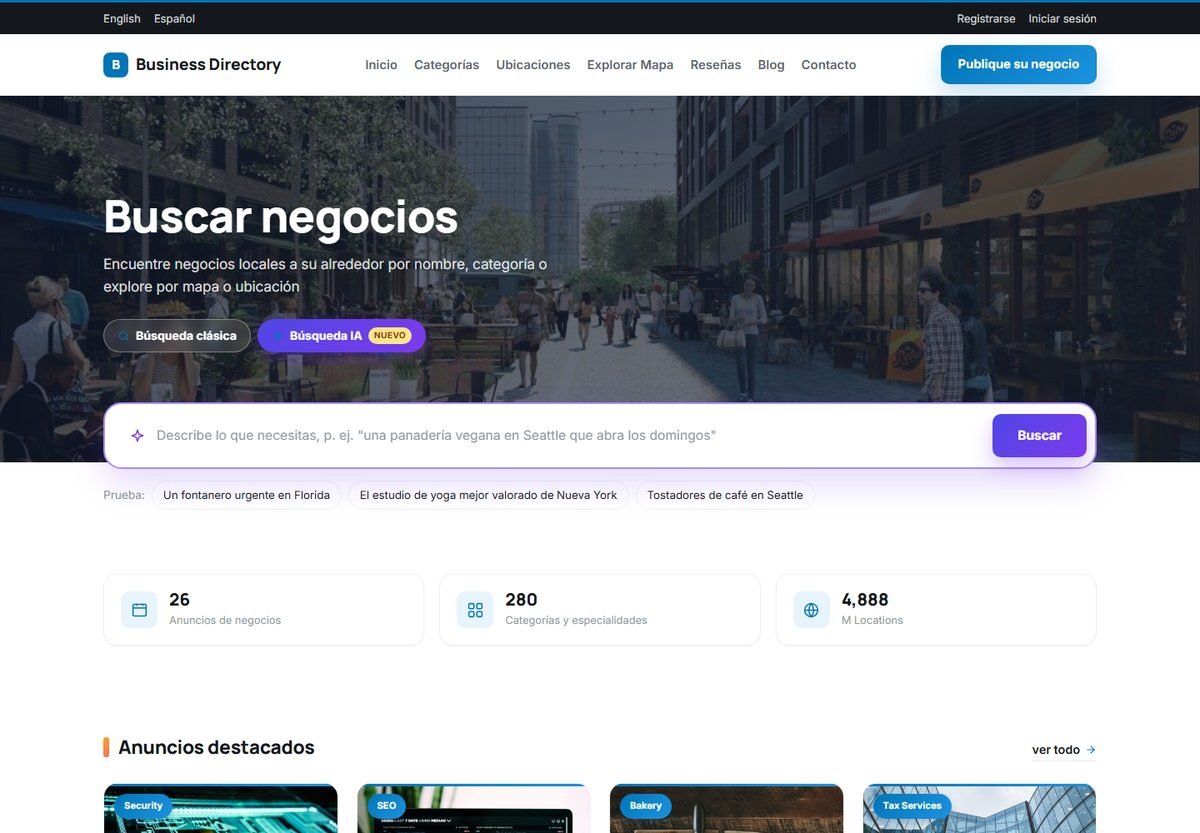
The home page introduces the directory and puts search front and center. Its exact layout depends on the template you choose, but every template contains the same building blocks.
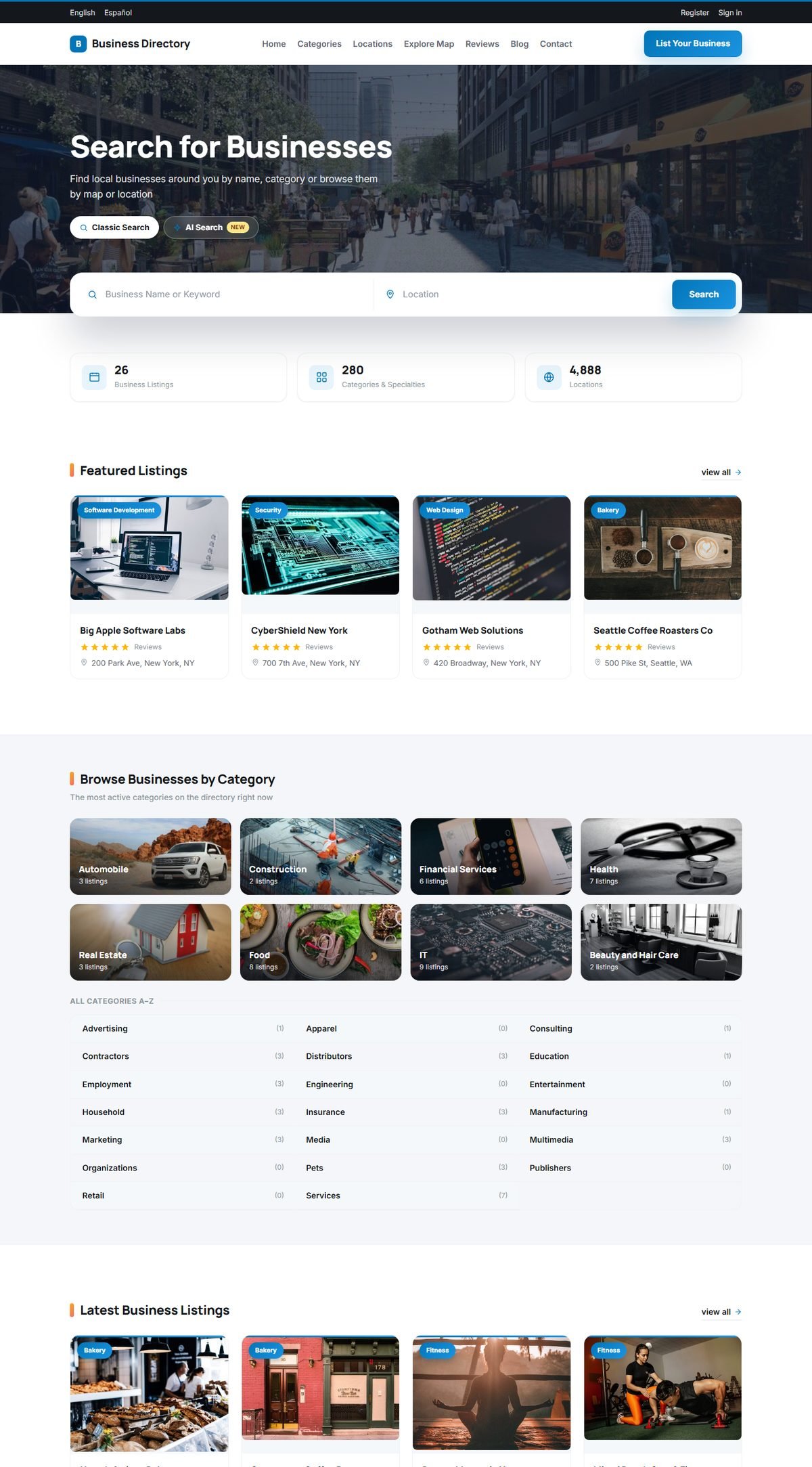
Parts of the home page
- Top bar: language links (when the website has more than one language), and Register and Sign in links for business owners. After login, they lead to the user panel.
- Menu: the pages you manage in Website › Pages, and a List Your Business button that opens the add listing page.
- Hero and search form: a title, a subtitle and a background photo that you set in Directory Settings › Configuration Options › Home Page Settings.
- Statistics: the number of listings, categories and locations.
- Featured Listings: listings with a featured package. The number shown is a setting.
- Latest Listings: the most recently approved listings.
- Browse by Category and Browse by Location: image tiles for the main categories and locations, followed by a complete A–Z index.
Each section can be switched off with the Show Latest Listings, Show Featured Listings, Show Categories Section and Show Locations Section options. See Directory Configuration Options.
The classic search
The classic search form has two fields:
- Business Name or Keyword: matches each word in the business name, description or address. As the visitor types, suggestions of matching businesses and categories appear below the field.
- Location: a country, state, city or zip code. Suggestions from your location list appear as the visitor types. A city or zip code typed here is also found in business addresses.
Both fields are optional. An empty search lists all businesses. The results open on the search results page, where visitors can refine the search further.
The AI search
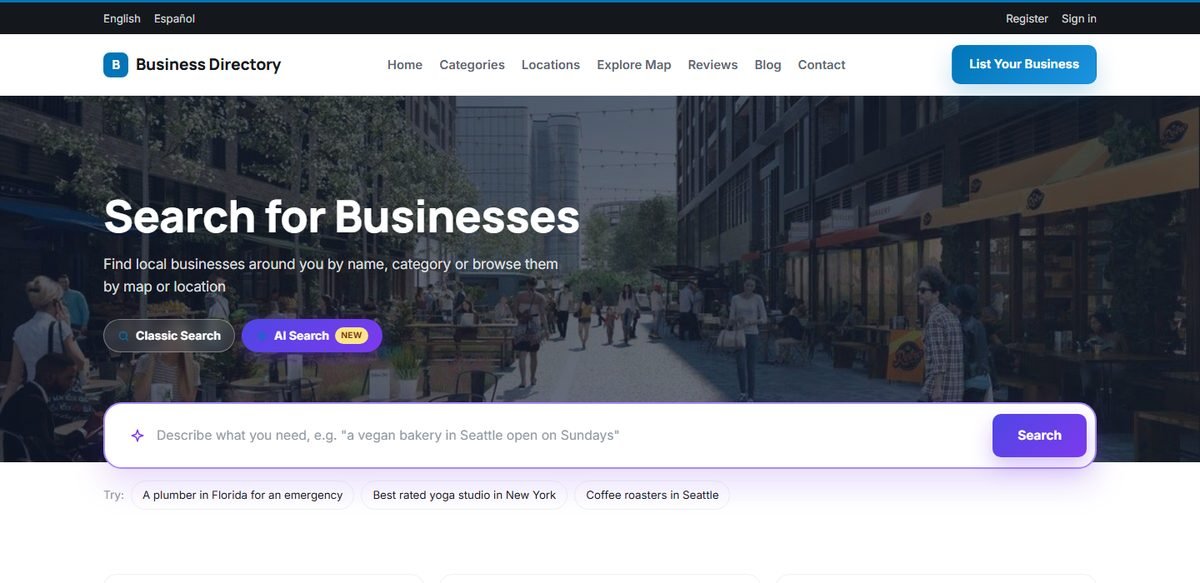
When the AI features are enabled, an AI Search tab appears next to Classic Search. Visitors describe what they need in their own words, in any language that your AI model understands:
- "a plumber in Florida for an emergency"
- "best rated yoga studio in New York"
- "coffee roasters in Seattle open on Sundays"
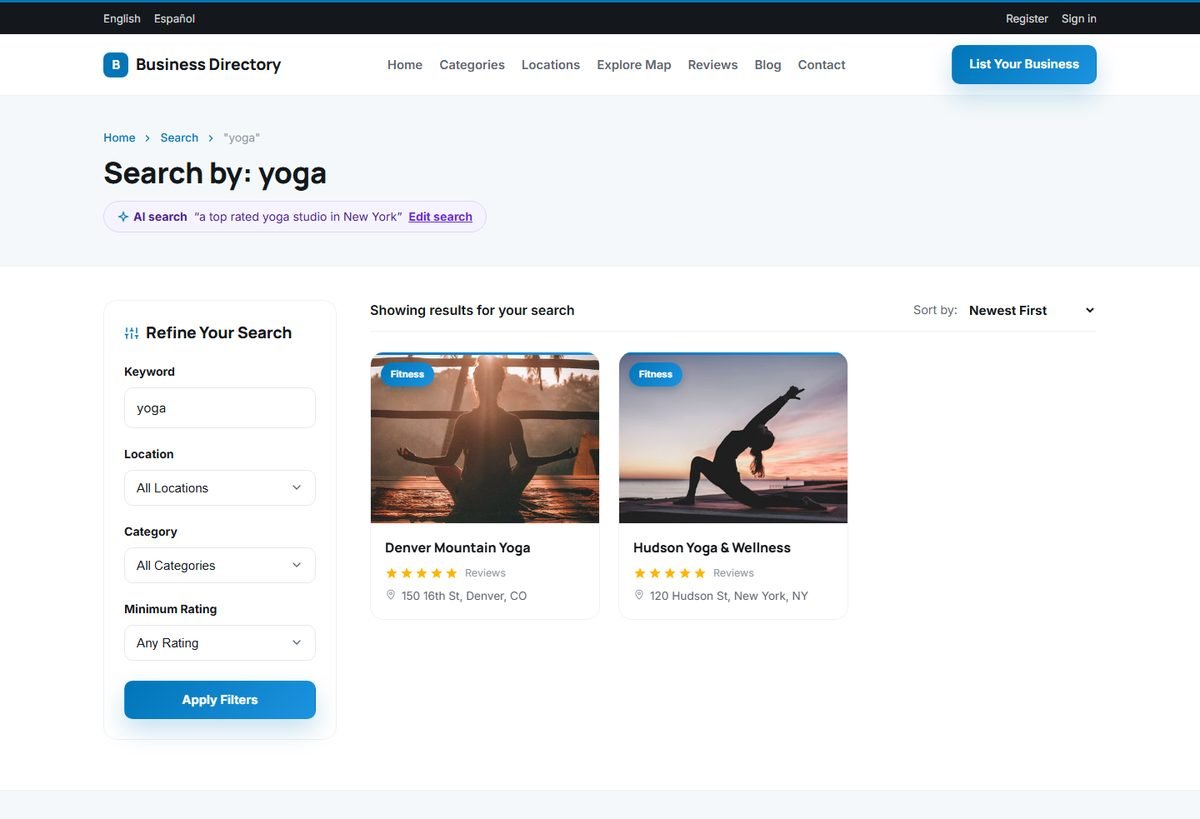
The AI turns the sentence into normal search filters: keyword, category, country or state, city, minimum rating, sort order and featured listings. Category and location names are always matched against your own lists, so a visitor can never land on a page that does not exist. The results page shows a small AI search banner with the original sentence and an Edit search link.
The AI search never blocks visitors. If no API key is set, the hourly limit is reached or the AI service does not answer, a built-in matcher still recognizes category and place names in the sentence and the search continues as a keyword search.
To enable the AI search and set its hourly limit per visitor, see Setting Up the AI Features.
Language versions
If your directory has more than one language, each language has its own home page and URLs, for example yourdomain.com/es for Spanish. Category names, location names and all interface texts are shown in the visitor's language, and the AI search answers in that language too.