The Directory section manages listings through their whole life: new listings are approved, active listings are edited and expired listings are renewed.
Approving new listings
Admin Panel › Directory › Approve Listings
New listings from the website and the user panel arrive here unless Auto Approve Listings is on. Each row shows the image, title, description, owner, package and category, and, for paid packages, the payment status: Paid, Check the payment or Awaiting payment.
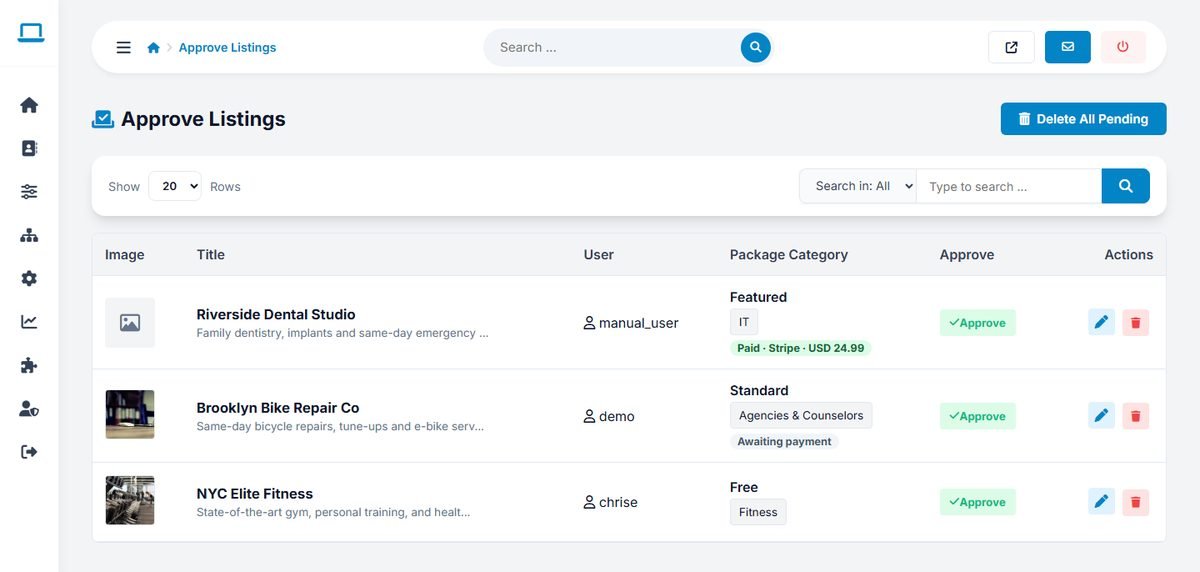
- Approve publishes the listing.
- The edit button opens the listing editor, for example to correct the category or a typo before approving.
- The delete button rejects and deletes the listing.
- Delete All Pending removes every pending listing at once, which is handy after a wave of spam.
For paid packages, approve a listing once it shows Paid. Card and PayPal payments are marked automatically; record bank transfers on the Payments page. See Payments: Stripe, PayPal and Bank Transfer.
Adding a listing
Admin Panel › Directory › Add Listing
- Enter the Title and choose a Package.
- Optionally enter the Owner username of a registered user, to give them the listing. Leave it empty for listings that business owners may claim later.
- Click Continue. The listing is created and opens in the full listing editor.
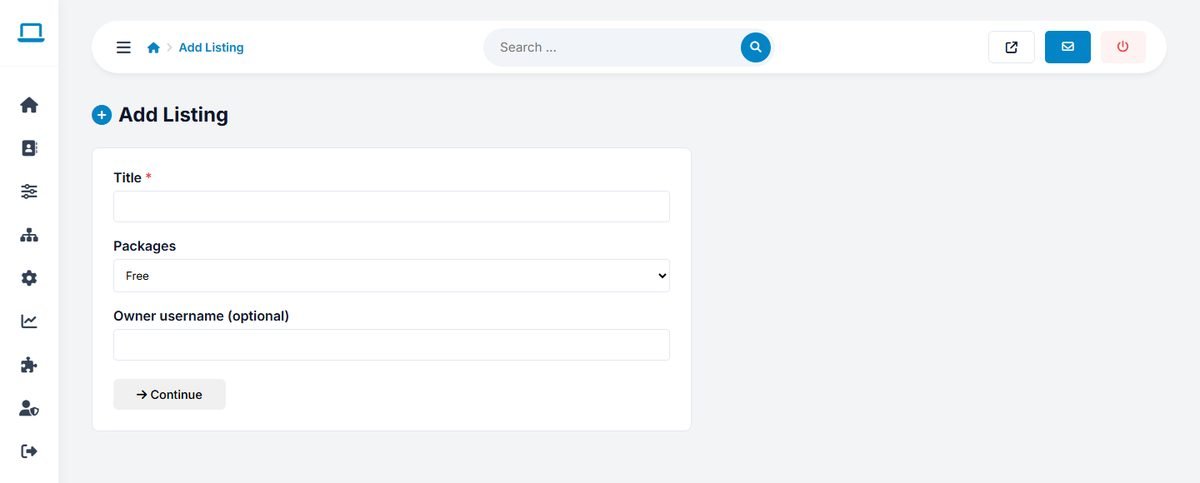
Listings added by administrators are active immediately.
Current listings
Admin Panel › Directory › Current Listings
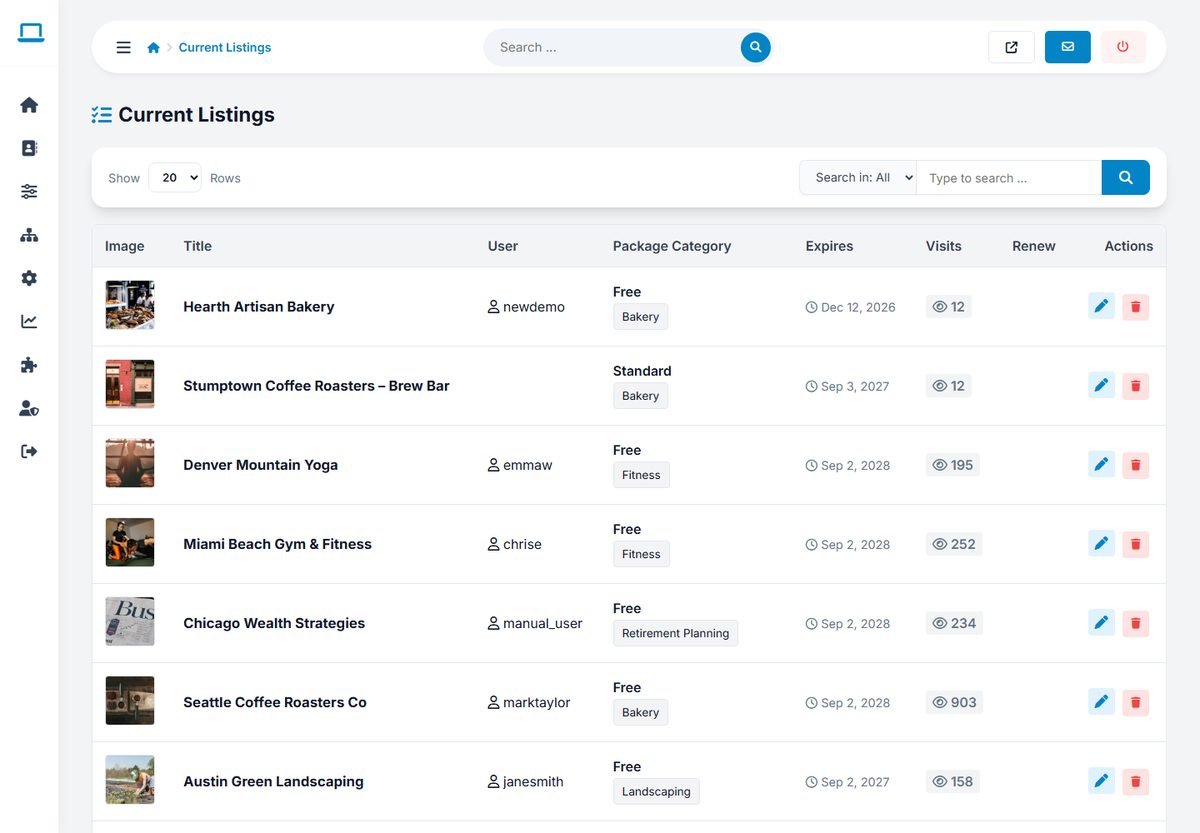
All active listings with their image, title, owner, package, category, expiry date and number of visits. Search by title or user, and use the buttons on the right to edit or delete a listing.
The listing editor
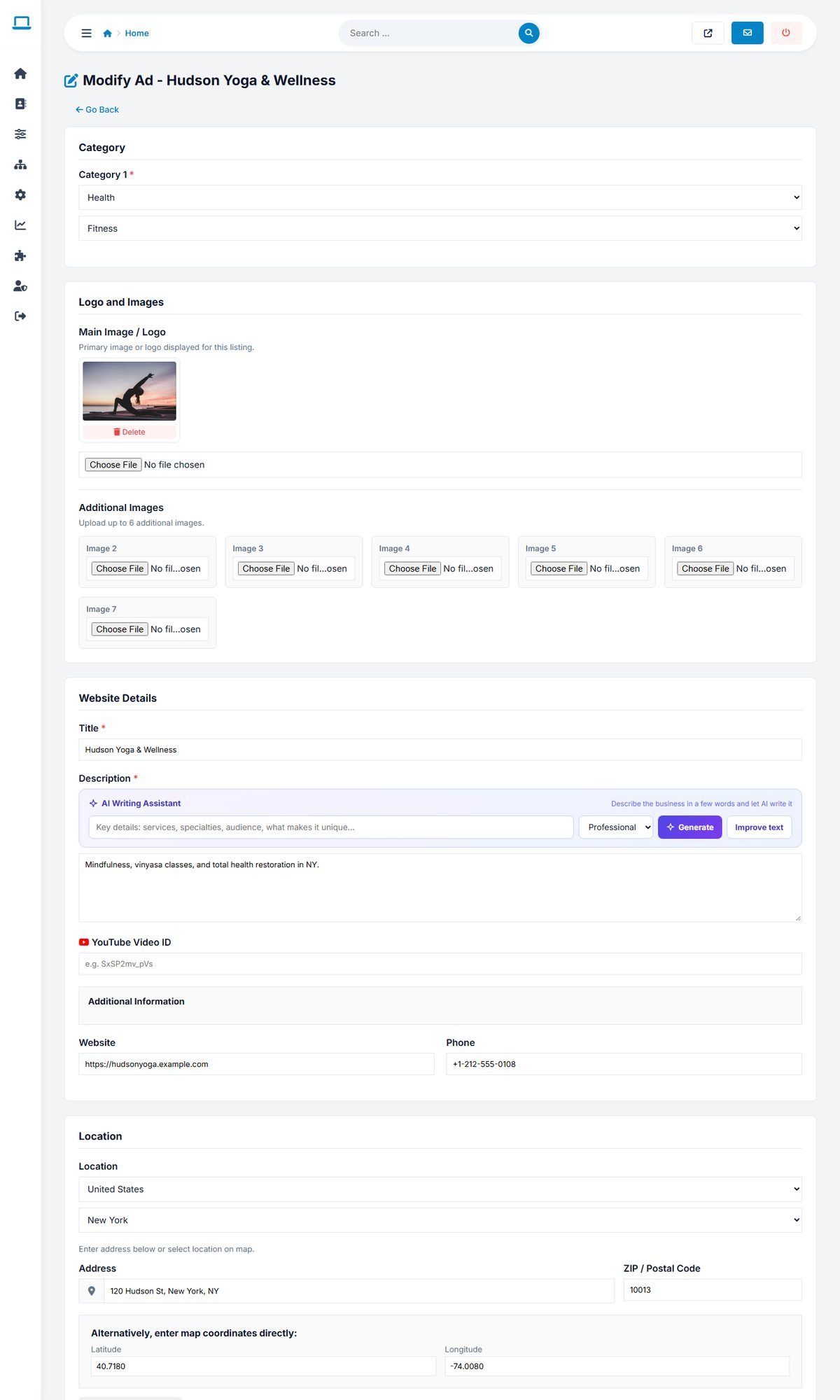
The editor contains every field of the listing, in sections:
| Section | Fields |
|---|---|
| Category | Up to three categories. |
| Logo and Images | The main image or logo and the additional images, with delete buttons. |
| Website Details | Title, description (with the AI writing assistant) and YouTube video ID. |
| Additional Information | Website and phone number, and your custom fields. |
| Location | Location, street address, zip code, map position (latitude and longitude, with a draggable pin). |
| Hours | Opening hours for each day of the week. |
| Administration settings | Approved, Featured, Dofollow link, Package, owner Username, contact name and email, and the secret edit Code. |
| SEO | Custom meta title and meta description for the listing page. |
- Featured highlights the listing on the home page and puts it first in search results, regardless of its package. Use it for special deals or to reward good customers.
- Dofollow link makes the website link a normal link that passes SEO value. Without it, the link carries
rel="nofollow". - Username assigns the listing to a registered user, who then manages it in the user panel.
- When the AI features are on, Suggest SEO title & description fills the custom meta fields from the listing content. Review the result before saving.
Click Save at the bottom. Changes are visible on the website immediately.
Renewing listings
Each listing expires after the duration of its package (or the default Listings Expiration Days). Expired listings disappear from the website but are not deleted. Owners can renew their own listings from the user panel and pay online; renewals paid by card or PayPal are applied automatically. In Current Listings, the Renew button extends a listing by the default expiration period, counted from today, for example after an offline payment.