The look of the website comes from its template. Version 6.1 includes five templates, each based on a different idea of what a business directory is, with its own layout, colors and fonts.
The five templates
| Template | Concept | Best for |
|---|---|---|
| Business | Clean corporate directory: photo hero with an overlapping search card, card grids, category and location tiles with an A–Z index. | General business directories, chambers of commerce |
| City Guide | Editorial city magazine: masthead header, editor's picks with a lead story, arched category cards. | City and tourism guides, lifestyle directories |
| Explorer | Map-first app: live map of all businesses on the home page, search results next to a map. | Local "near me" directories, services, real estate |
| Yellow Pages | Classic phone book: bold yellow header with What/Where search, A–Z category index, dense rows with phone numbers. | Large general directories, trades and services |
| Luxe | Premium curated guide: dark and gold header, full-screen photos, category mosaic, tall image cards. | Restaurants, hotels, wedding venues, luxury services |
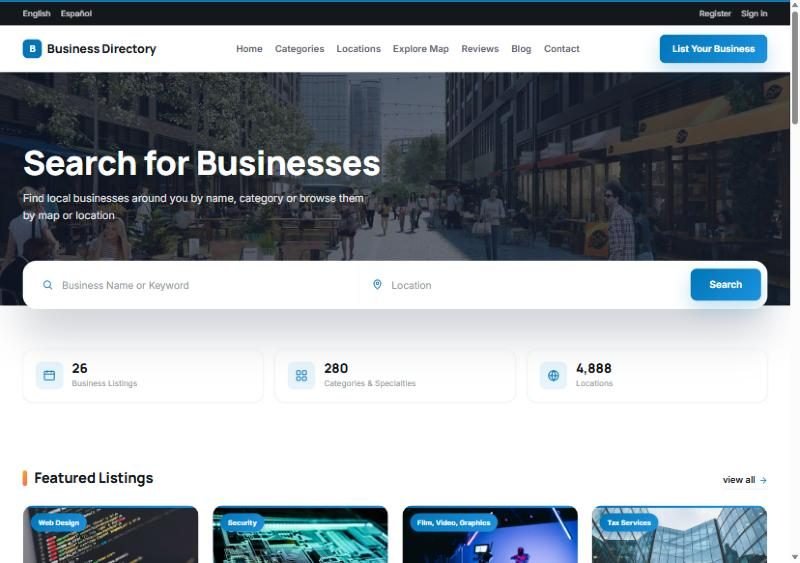
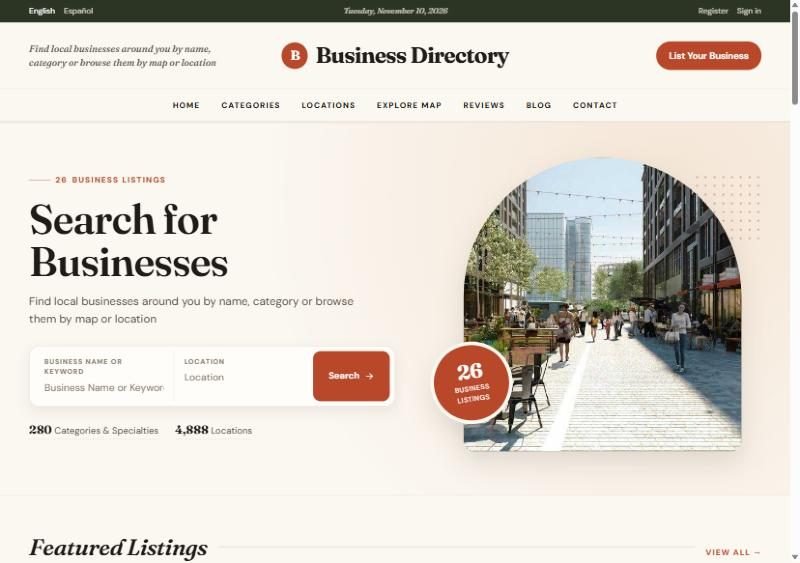
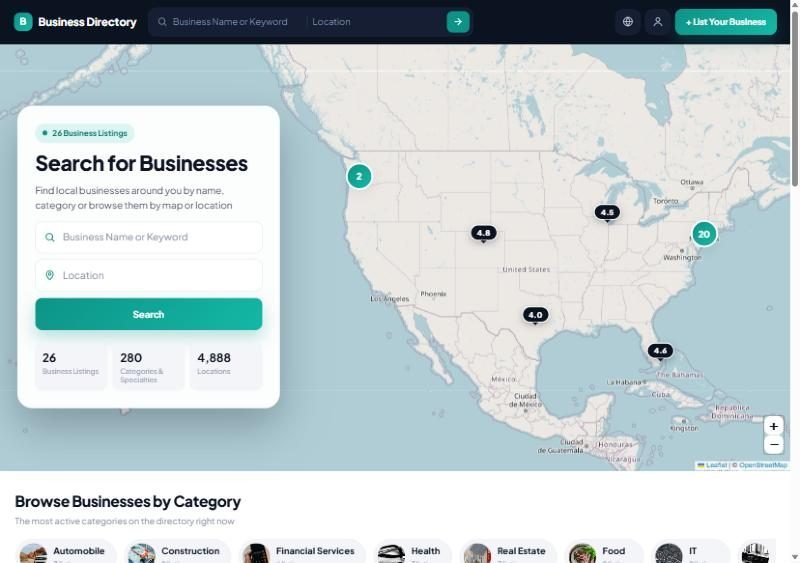
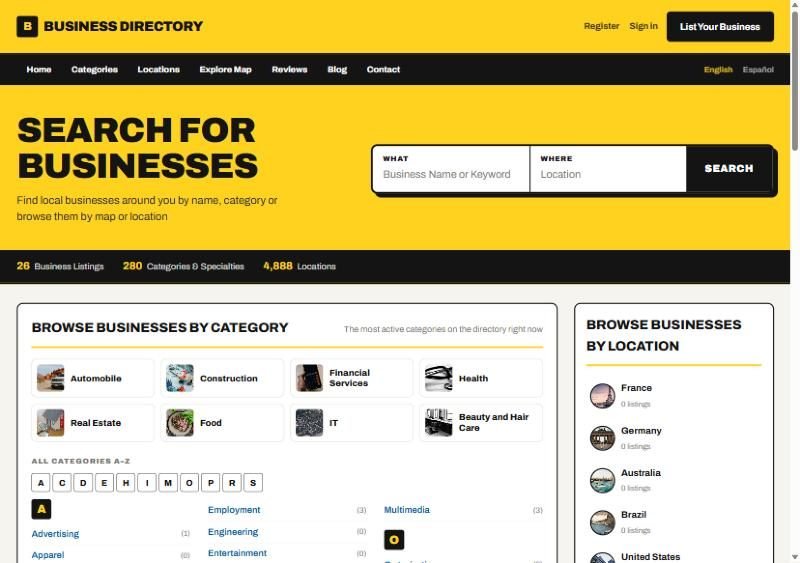
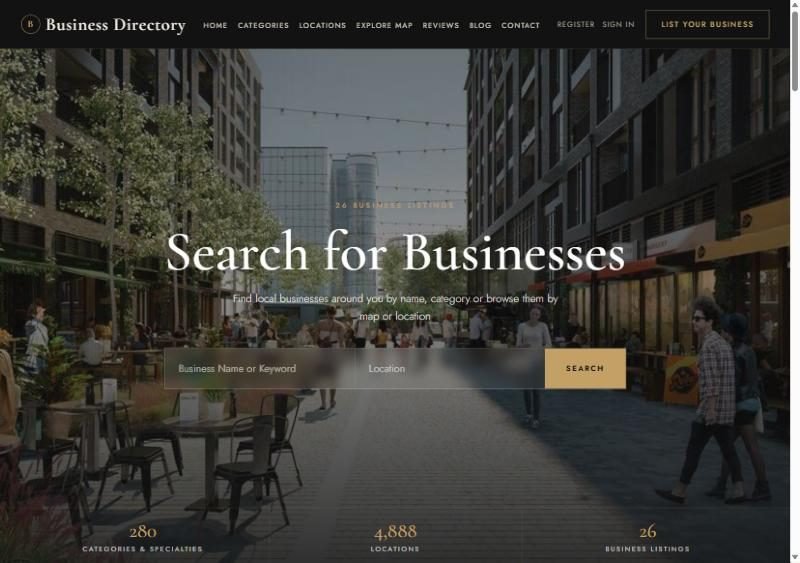
All templates support every feature: classic and AI search, suggestions, all languages, appointment booking, reviews and the user panel links. All are designed for phones as well as computers.
Previewing and activating a template
Admin Panel › Website › Templates
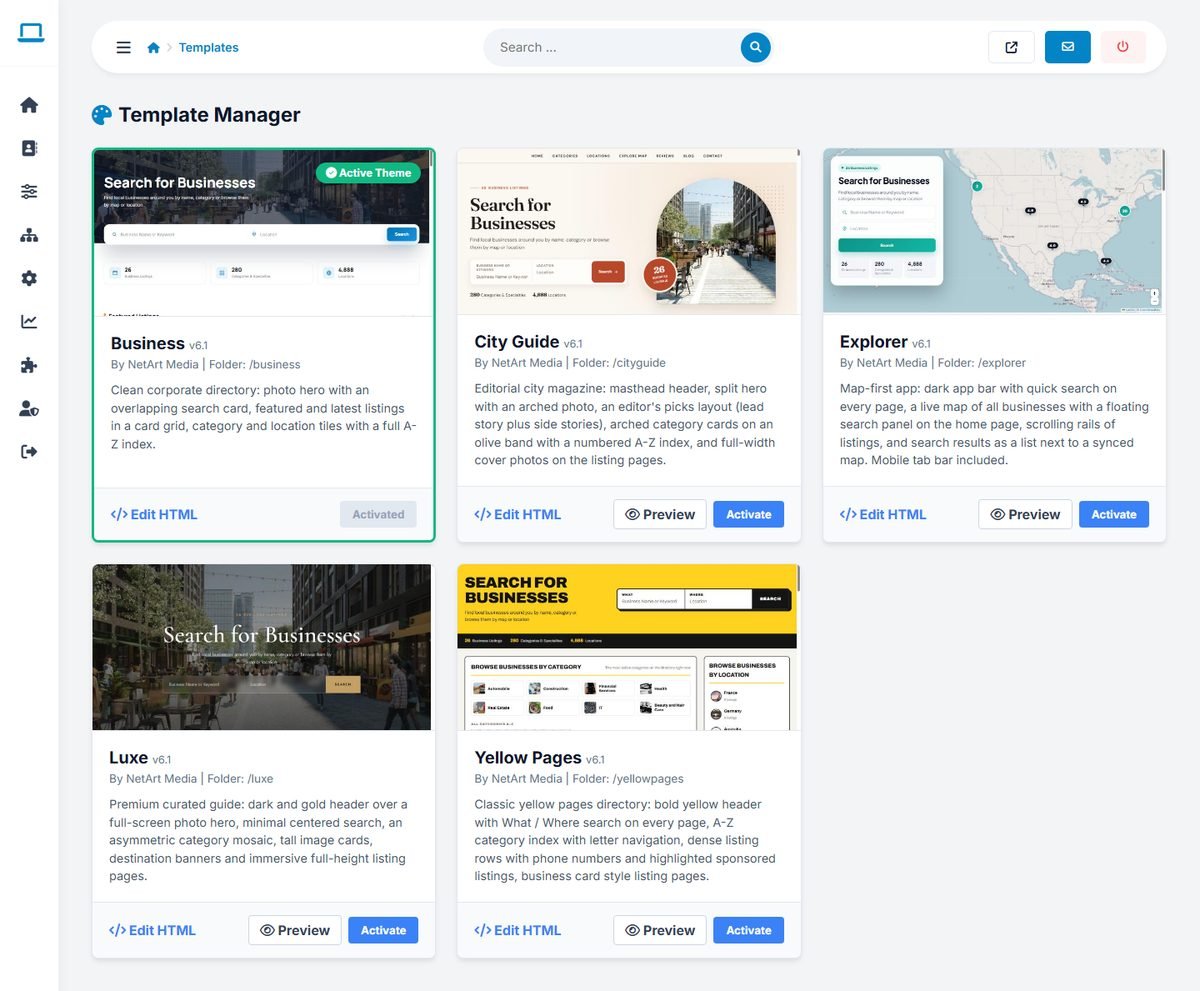
- Preview opens the website in a new tab with that template, for you only. Browse every page to judge it with your own content. Visitors keep seeing the active template. Click Exit preview in the bar at the bottom of the page to return to the active template.
- Activate switches the live website to that template.
- Edit HTML opens the template files in a code editor. See Customizing Templates.
Choose the template before you finish your category images and home page photo: Luxe and City Guide look best with high-quality photos, Yellow Pages works well even with few images.
Logo and favicon
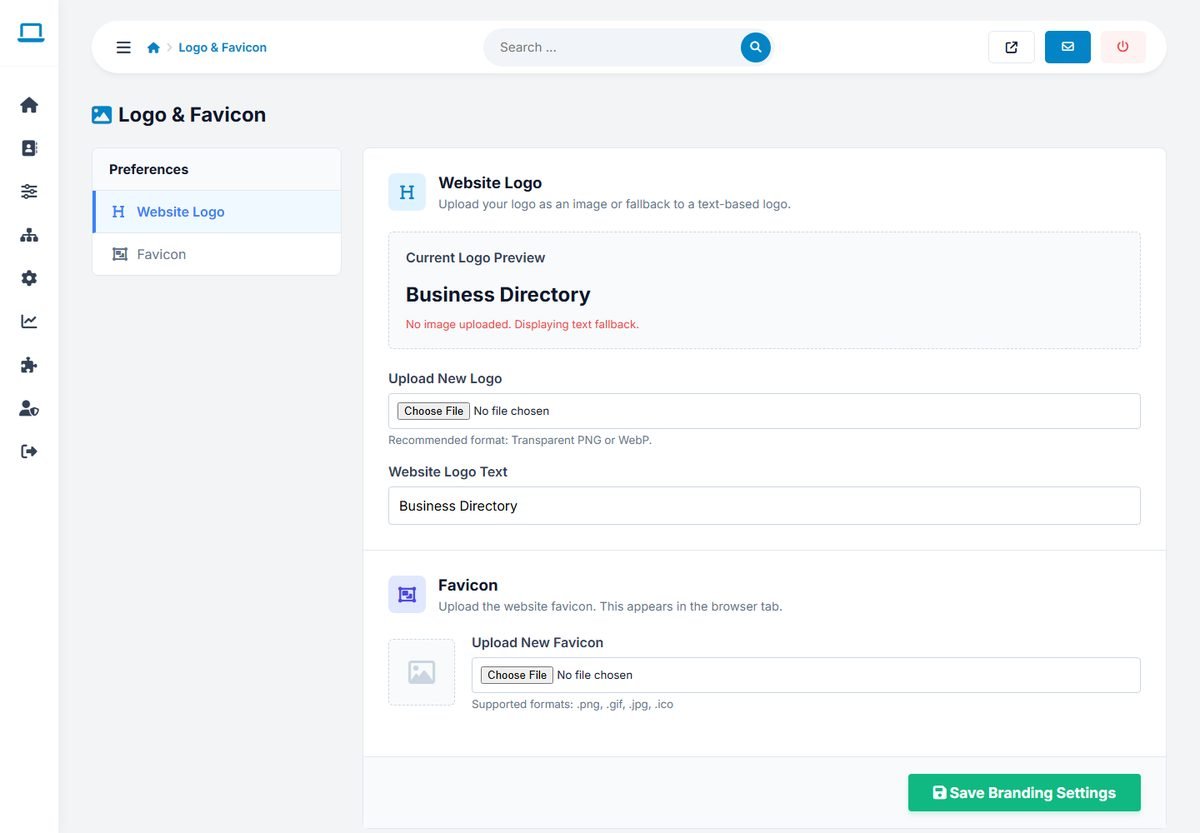
Admin Panel › Website › Logo & Favicon
- Website Logo: upload your logo as a transparent PNG or WebP image. Without an image, the Website Logo Text is shown as a text logo.
- Favicon: the small icon in the browser tab (PNG, GIF, JPG or ICO), ideally square, 64 × 64 pixels or larger.
Click Save Branding Settings.
Home page photo and texts
The home page background photo, title and subtitle are set in Home Page Settings, so they stay the same when you switch templates.
Colors and fonts
Each of the five templates has its own carefully matched colors and fonts. To change them, edit the CSS variables at the top of the template's stylesheet (css/theme.css, or css/main.css for Business), as described in Customizing Templates.
Without touching any file, you can also give any template your own brand colors in the Appearance tab of Settings › Configuration Options:
- Switch on Apply these colors and fonts to the template.
- Choose the Primary Accent Color (buttons, links and highlights) and the Secondary Color (the template's second brand color: the yellow of Yellow Pages, the gold of Luxe, the navy of Explorer, the olive of City Guide or the amber of Business).
- Choose the Typography Font, the Button Shape and the Footer Background, then click Save All Settings.
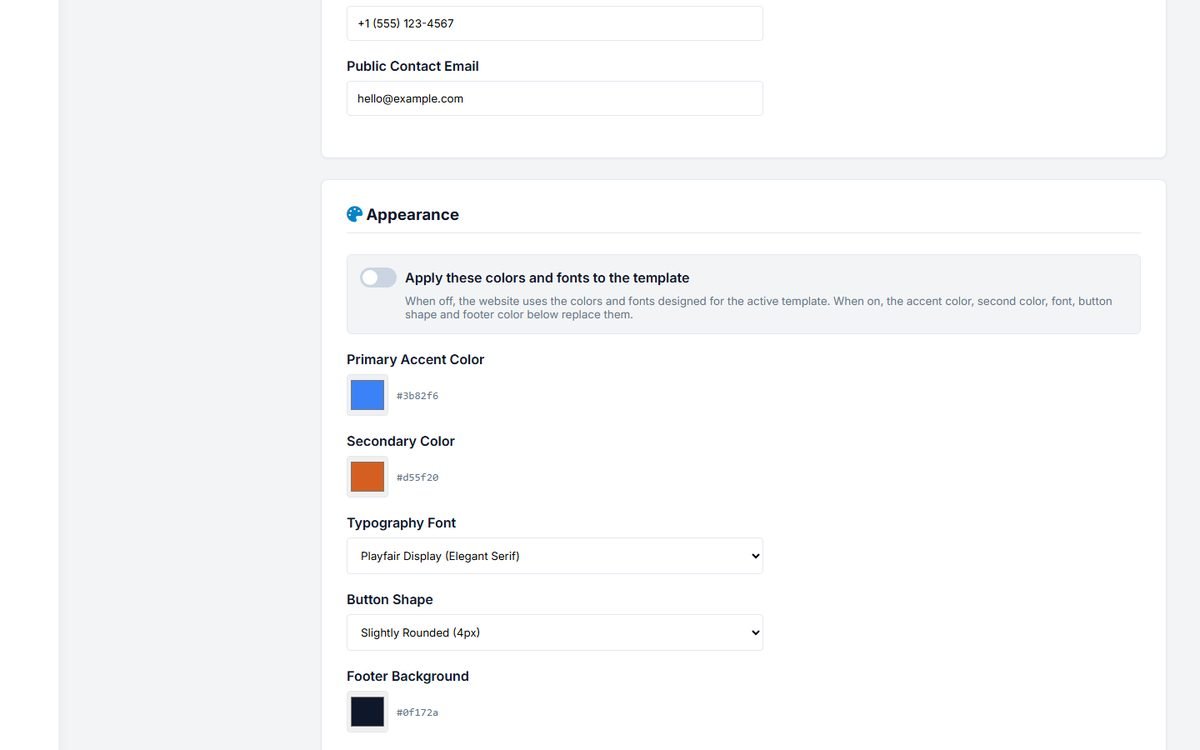
Lighter and darker shades are calculated automatically, and the footer text switches between light and dark to stay readable. Switch the option off to return to the template's original design.