Give every person who works on the directory their own admin login. You can then see who did what in the login logs, remove access when someone leaves, and limit each person to the pages they need.
Admin users
Admin Panel › Admin Users › Admin Users
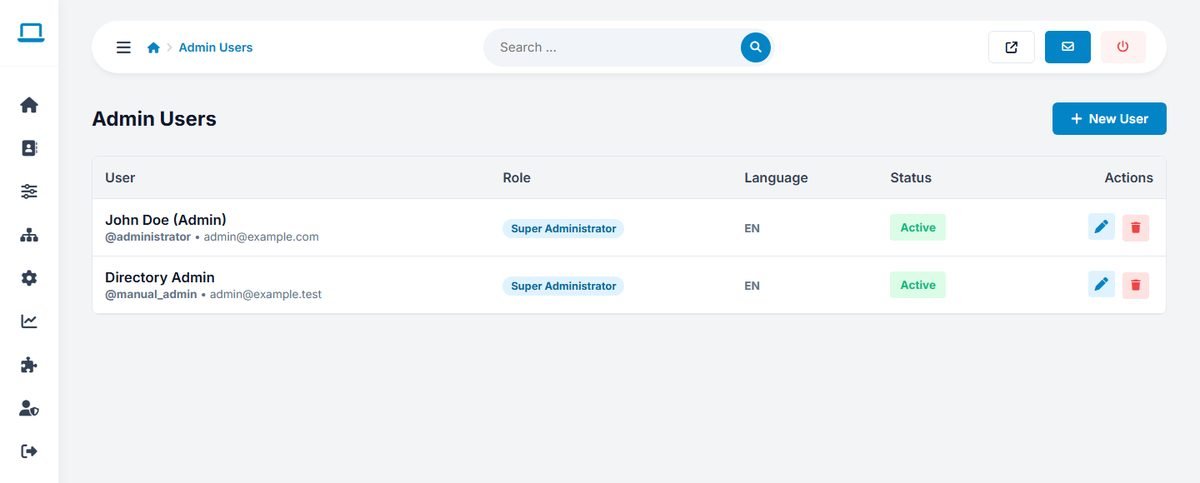
Click New User and enter the Full Name, Email, Login Username and Password, choose the Group / Role, and tick Account Is Active. When editing, leave the password empty to keep the current one; untick Account Is Active to block a login without deleting it.
Groups
Admin Panel › Admin Users › Groups
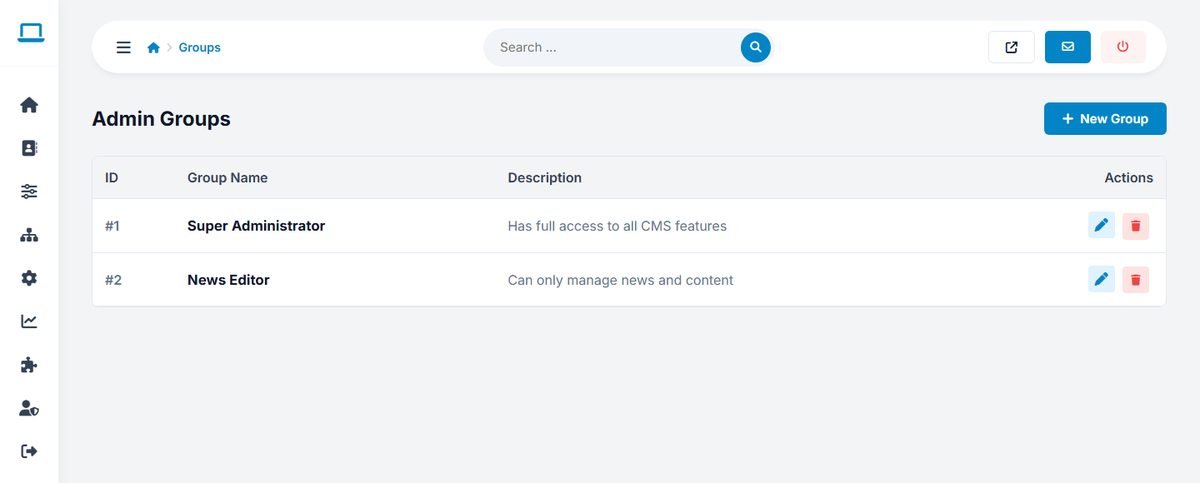
A group is a role, such as "Moderator" or "News Editor". The demo has two: Super Administrator, which has full access to everything, and News Editor. Click New Group and enter a name and a description.
Permissions
Admin Panel › Admin Users › Permissions
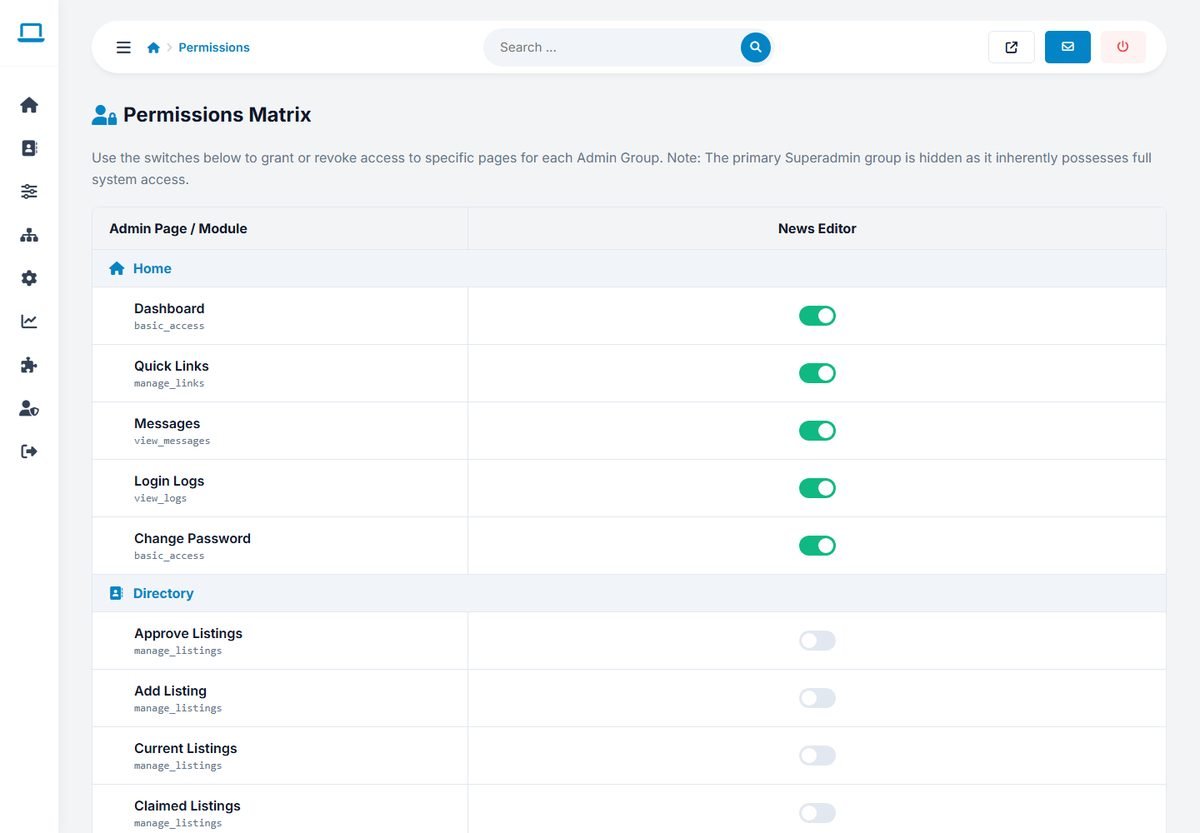
The permissions matrix lists every admin page, grouped by section, with a switch for each group. Turn on the pages a group may use and click Save Permissions. The Super Administrator group is not shown, because it always has access to everything.
Examples:
- Moderator: Dashboard, Approve Listings, Current Listings, Claimed Listings, Reviews.
- Content editor: Dashboard, Pages, News, FAQ.
- Sales: Dashboard, Users, Packages, Banners, Statistics.
Some permissions cover several pages; for example the Approve Listings, Add Listing, Current Listings and Claimed Listings pages share the manage_listings permission.