Admin Panel › Website › Pages
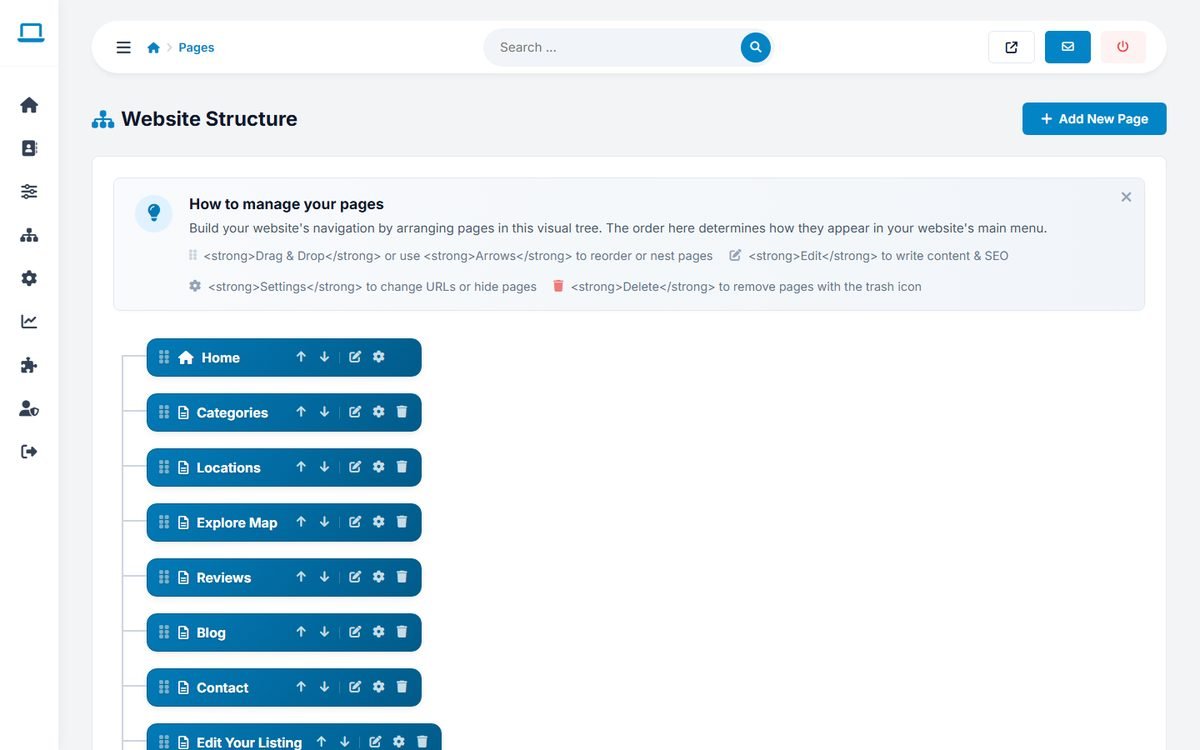
The Pages section shows the structure of the website as a tree. The order of the tree is the order of the main menu, and pages placed under another page become its sub-pages.
Arranging the menu
- Drag a page by its handle to move it, or use the up and down arrows.
- Drop a page onto another page to nest it as a sub-page.
- The structure is saved automatically; a Structure Saved! message confirms it.
Each page in the tree has buttons to edit its content, open its settings and delete it.
Adding a page
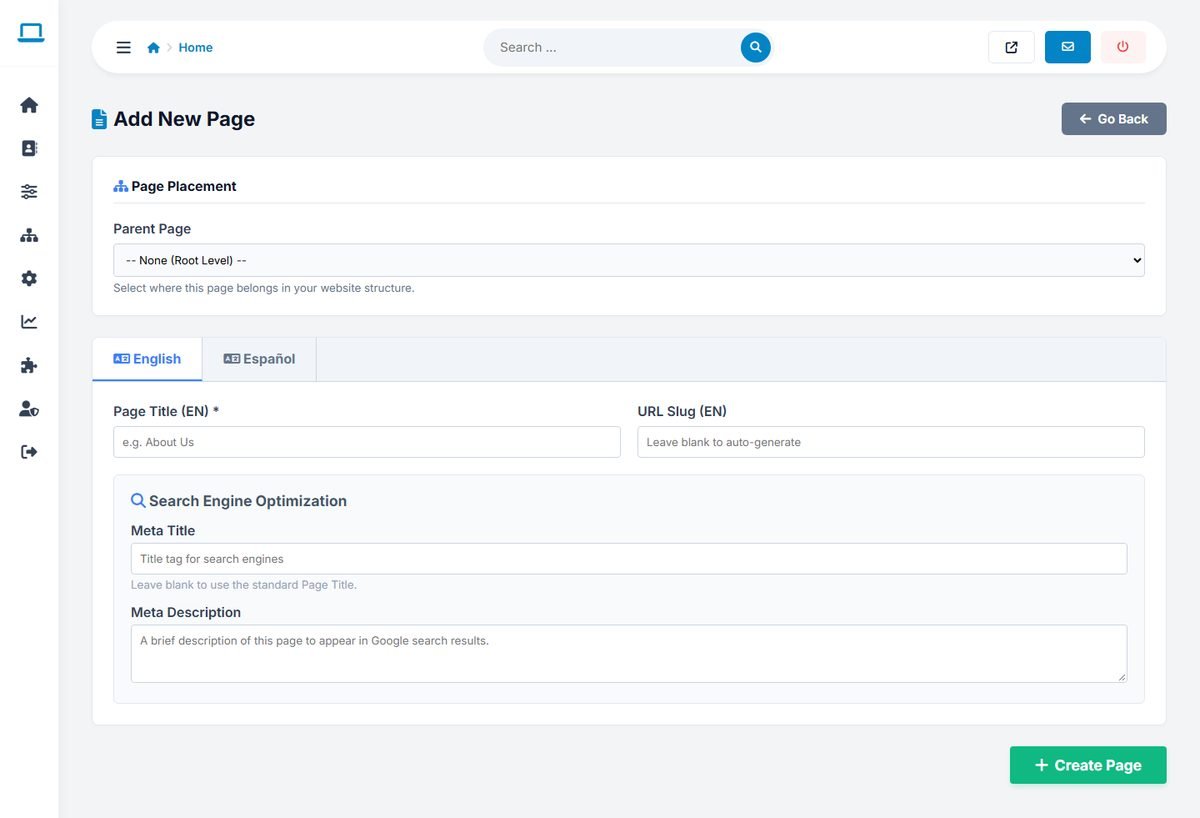
- Click Add New Page.
- Choose the Parent Page, or None (Root Level) for a main menu item.
- For each language, enter the Page Title and optionally the URL Slug; it is generated from the title when empty.
- Optionally enter a Meta Title and Meta Description for search engines.
- Click Create Page, then edit its content.
Editing the content
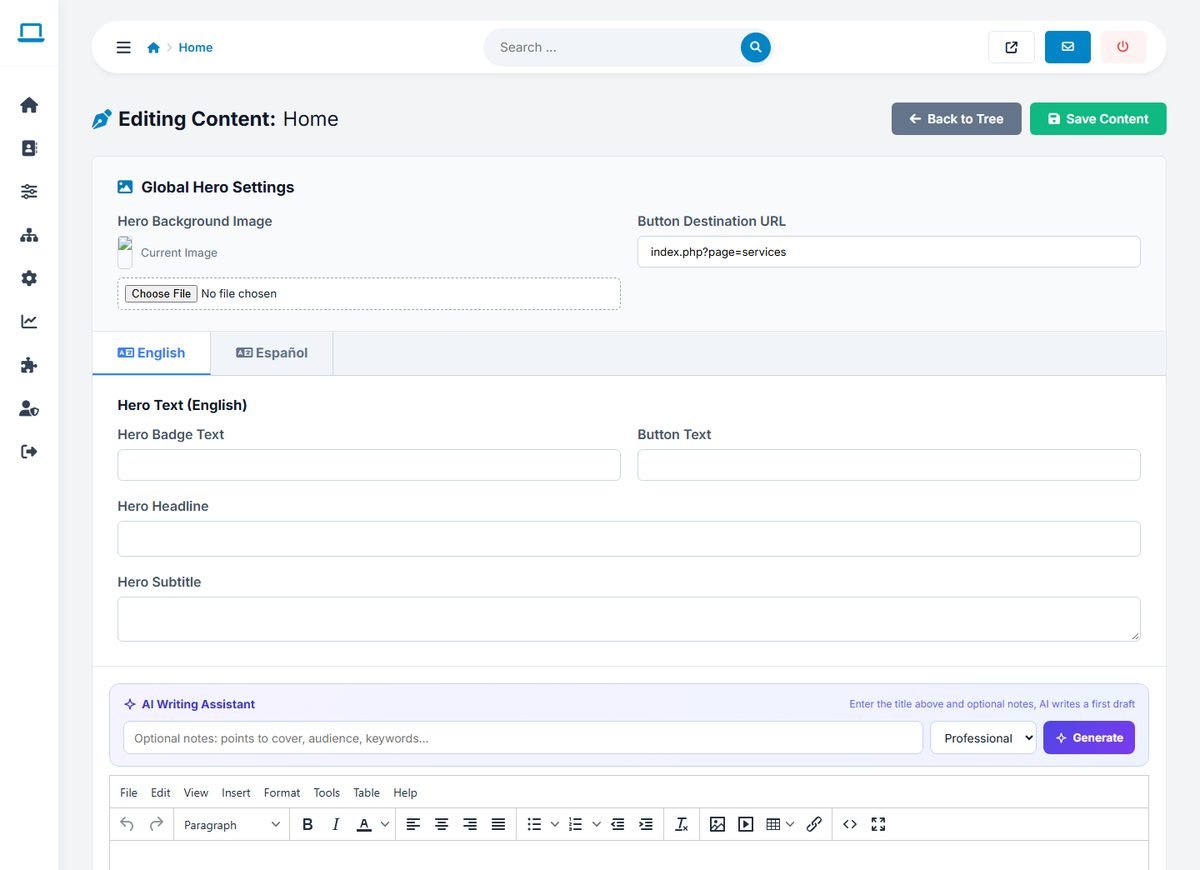
The content editor works like a word processor: headings, bold text, lists, links, images, tables and embedded videos. Each language has its own tab. When the AI features are on, the AI Writing Assistant above the editor drafts the page from the title and a few notes.
The home page has extra Global Hero Settings: the hero background image, a badge text, the headline, the subtitle and an optional button.
Page settings
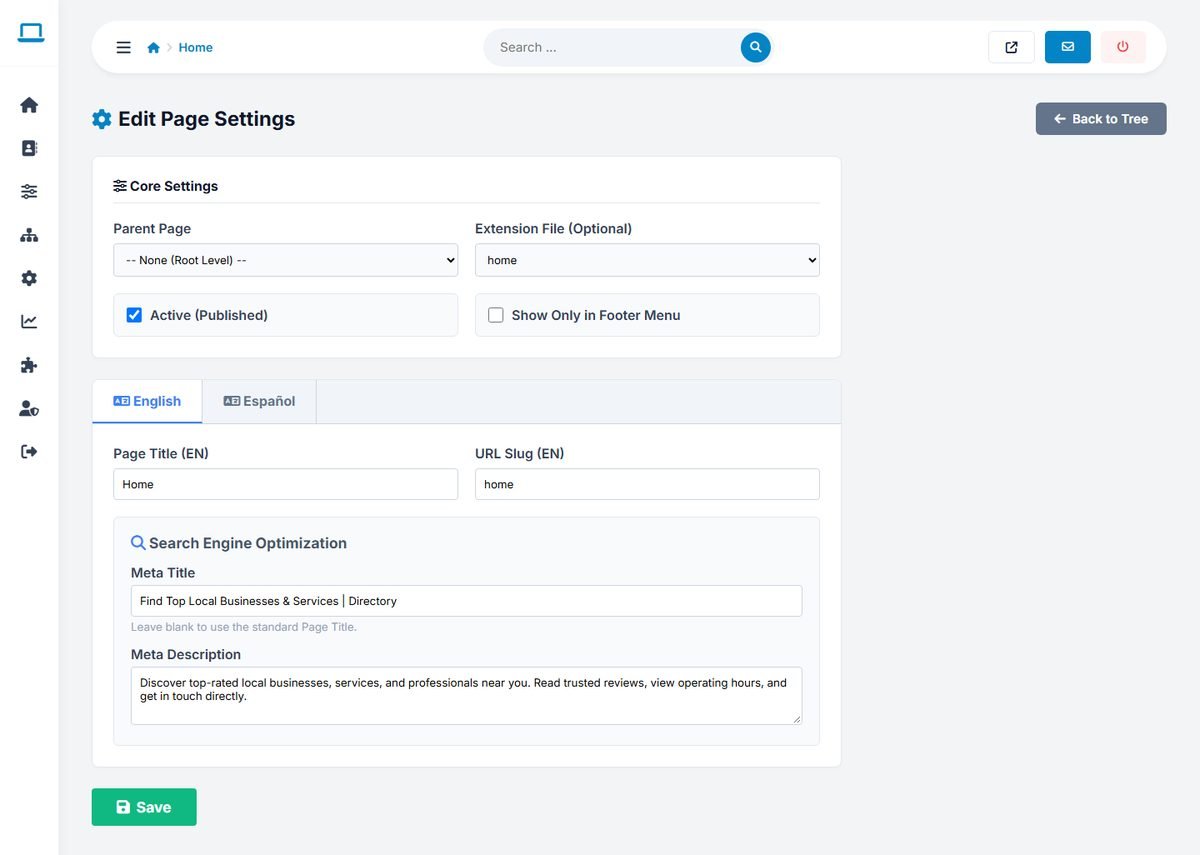
- Parent Page: moves the page in the structure.
- Extension File: a PHP file from the
extensionsfolder that runs on this page. The built-in pages use this for their features, for examplemapfor Explore Map andcontactfor the contact page. Do not change it for those pages. See Extensions and Custom Tags. - Active (Published): untick it to hide a page without deleting it.
- Show Only in Footer Menu: removes the page from the main menu and lists it in the footer instead. Use it for pages such as Terms of Use or Privacy Policy.
- The title, URL slug, meta title and meta description of each language.
Deleting a built-in page such as Categories, Locations or Contact removes that feature from the menu. Hide it with Active instead if you might need it later.