Admin Panel › Directory Settings › Locations
Locations work like categories: a text tree of countries and their states, regions or cities, plus images for the location tiles.
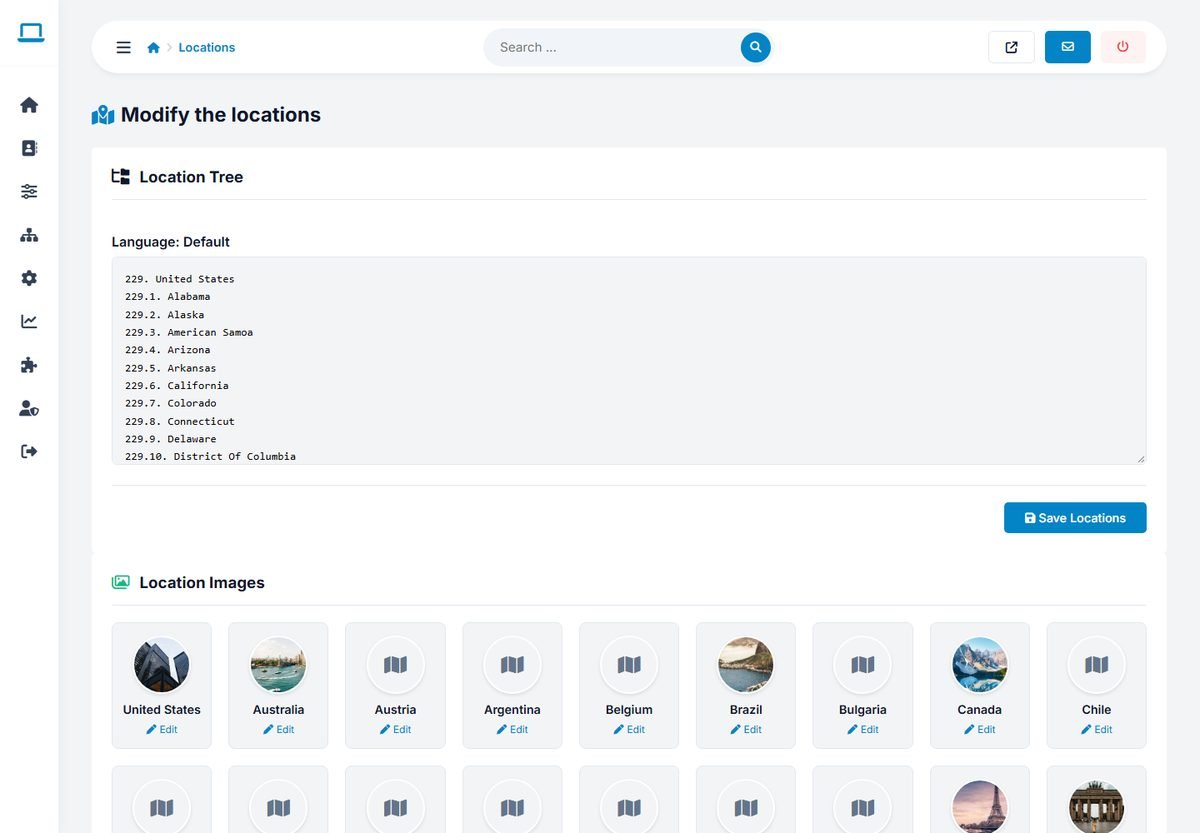
The location tree
The same numbering format is used as for categories:
229. United States
229.12. Florida
229.37. New York
113. Australia
113.1. Albury
Edit the tree and click Save Locations. The same rules apply: keep the numbers of existing locations, use new numbers for new ones, and move listings before deleting a location.
Adapting the list to your directory
The demo database contains a long list of countries and their regions. A local or national directory should only list its own area:
- A national directory keeps its country and lists its states, provinces or counties below it.
- A city guide can use districts or neighborhoods as the locations, for example
1. Manhattan,1.1. Upper West Side.
A shorter list makes the location menus easier to use and creates only the location pages you want search engines to find.
Visitors can also type a city or zip code in the search, even if it is not in the tree: the search looks for it in the business addresses.
Location images
Below the tree, Location Images shows a tile for each main location. Click Edit to upload a photo of the city or region. The photos appear on the location tiles of the home page and the locations page.
Page titles and texts for locations
Location pages such as "Plumbers in Florida" can rank well in search engines, especially with a good title and introduction. See SEO: URLs, Titles, Sitemap and Structured Data.