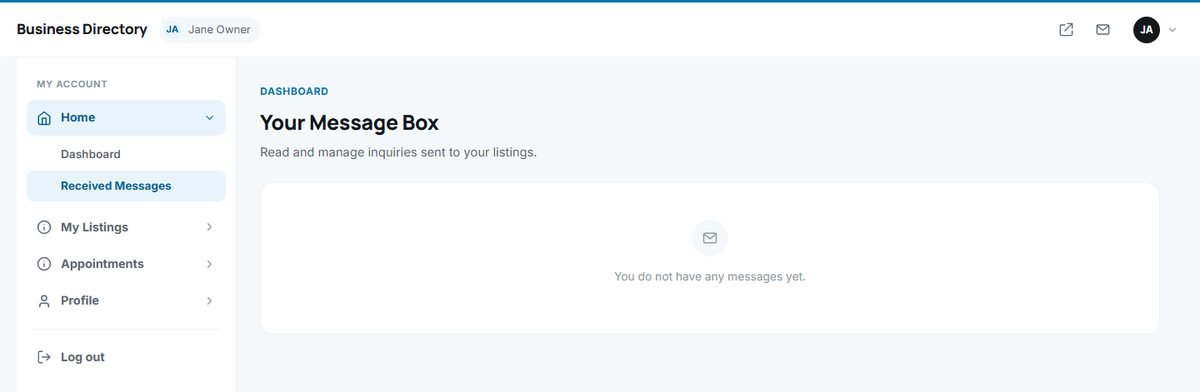
Business owners reach the user panel by logging in on the website, or directly at yourdomain.com/USERS/. It is a separate, simple interface designed for people who are not technical.
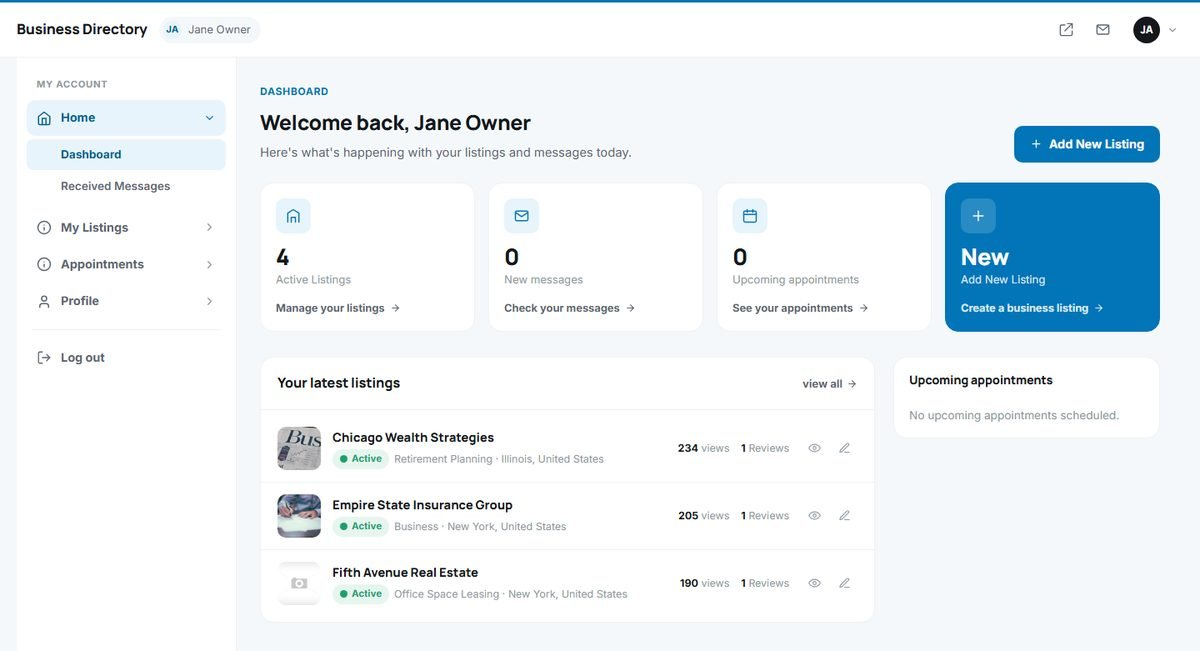
Layout of the user panel
- Top bar: the directory name, the user's name, a link to the main website, a messages icon and the account menu with Contact details, Change password and Log out.
- Menu on the left: four sections, each with its pages.
| Section | Pages |
|---|---|
| Home | Dashboard, Received Messages |
| My Listings | Your Current Listings, Listings Pending Validation, Expired Listings, Banners, Add New Listing |
| Appointments | New Appointments, Confirmed Appointments, Cancelled Appointments, Employees |
| Profile | Contact Details, Change Password |
The user panel uses the language the user chose on the website.
The dashboard
The dashboard greets the user and summarizes what matters today:
- Active Listings, New messages and Upcoming appointments counters, each with a link to the matching page.
- An Add New Listing shortcut.
- Your latest listings with their status, category, location, number of views and number of reviews. The view count shows business owners the value of their listing.
- Upcoming appointments booked by customers.
Received messages
User Panel › Home › Received Messages
When a visitor uses the contact form of a listing, the message is emailed to the business and also saved here. Each message shows the sender's name, email address, phone number, the date and the text.
- Reply sends an answer by email to the visitor, directly from the user panel.
- Delete removes the message after a confirmation.